Once the match is completed, the result can be confirmed, and the app will automatically calculate the log points based on the outcome.
1. Navigate to https://sportivo.app/v3/#/auth/sign-in
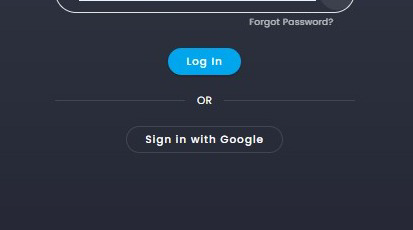
2. Click "Log In" after entering your username (email) and password.
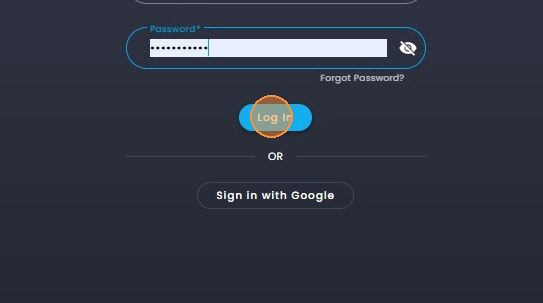
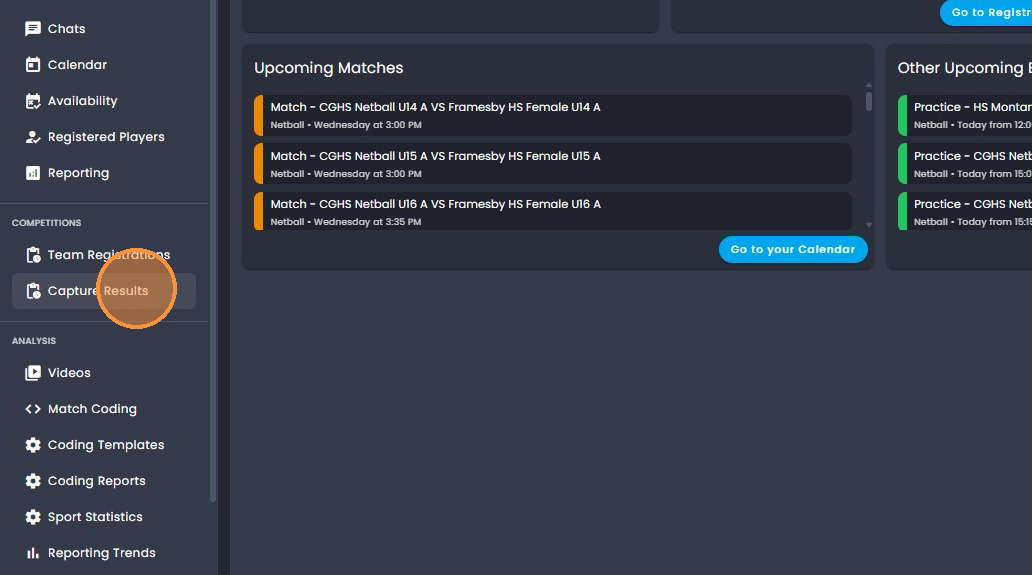
3. Click on "Capture Results".
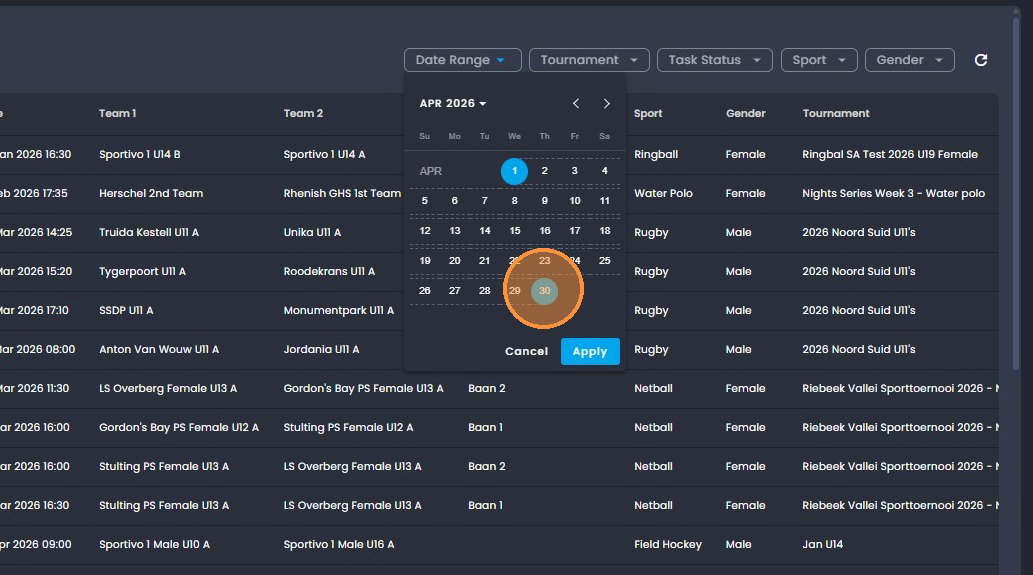
4. Click on the "Date range" filter and select your dates of the Competition,
to select your start and end dates.
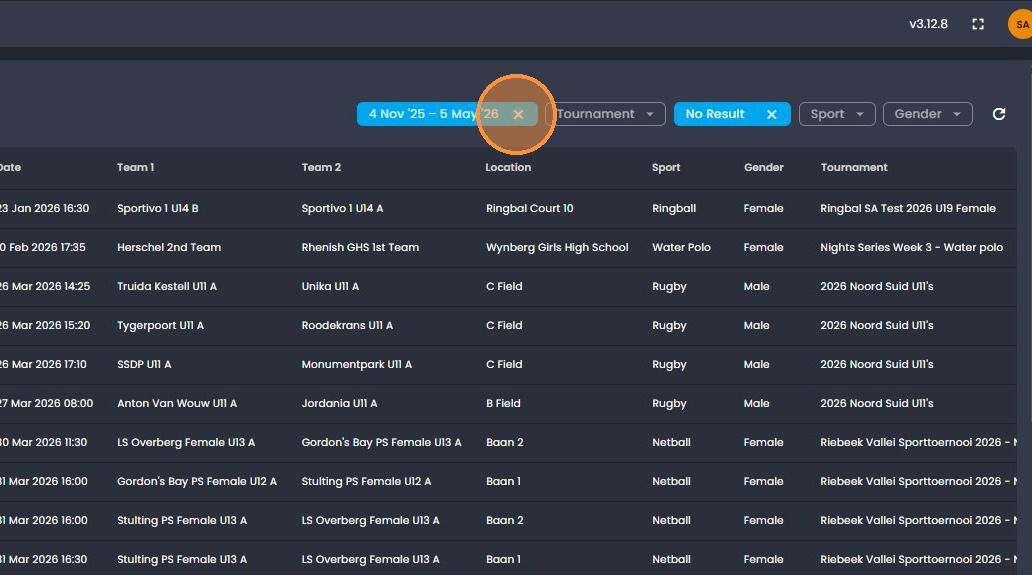
5. Select the date range on the calendar and click "apply".
6. Click on the "Task Status" filter and select no result.
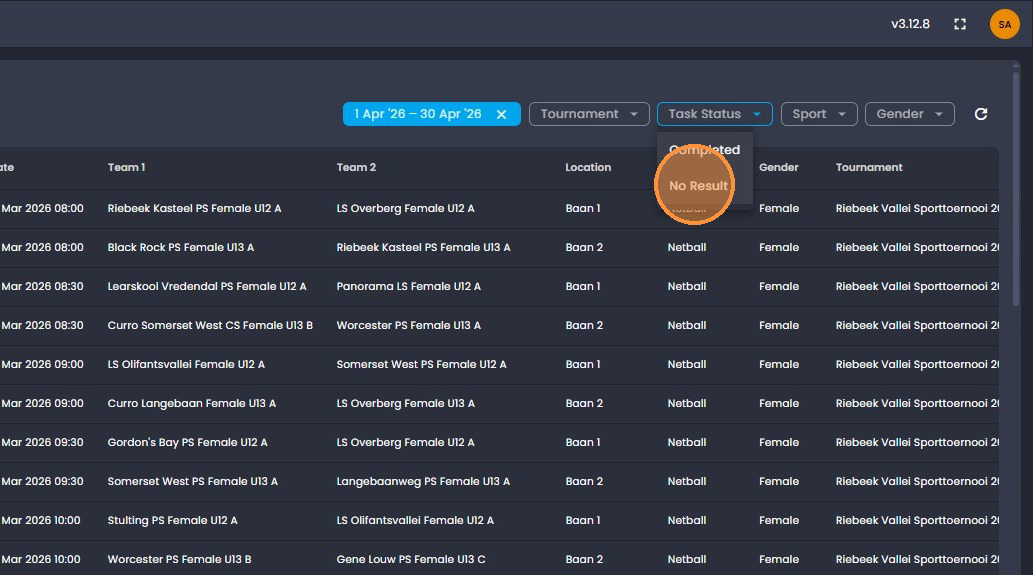
Please note: If a result was entered incorrectly you may click on
"completed" as seen above and this will then allow for you to re-enter
the correct result and click "save". Once you have selected "completed"
in the filter, click on the pencil icon alongside that match then click
on " change result" and click "save".
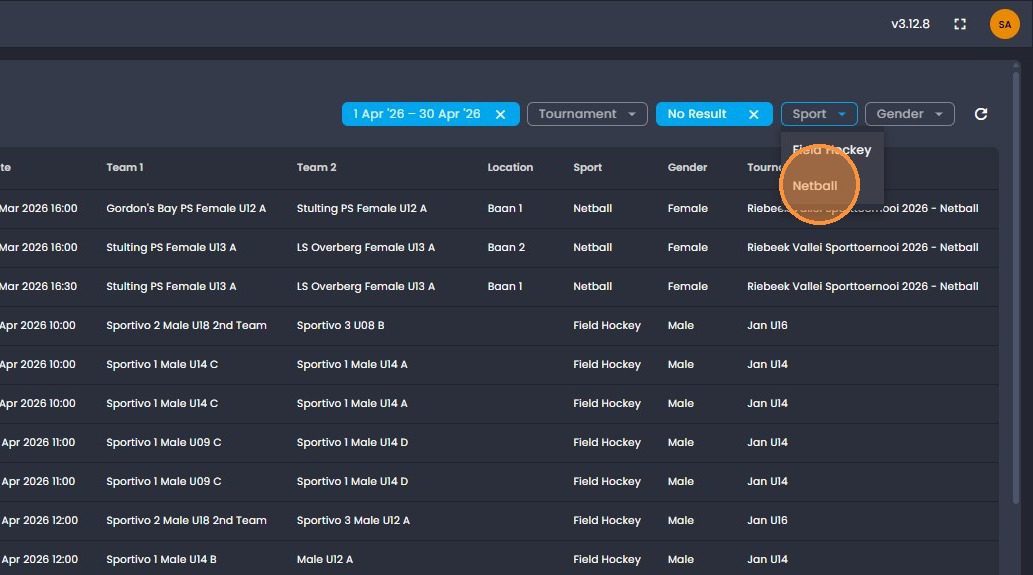
7. Click on the "Sport" filter to select the sport you are updating results for.
8. Click on the pencil icon to go to the match here.
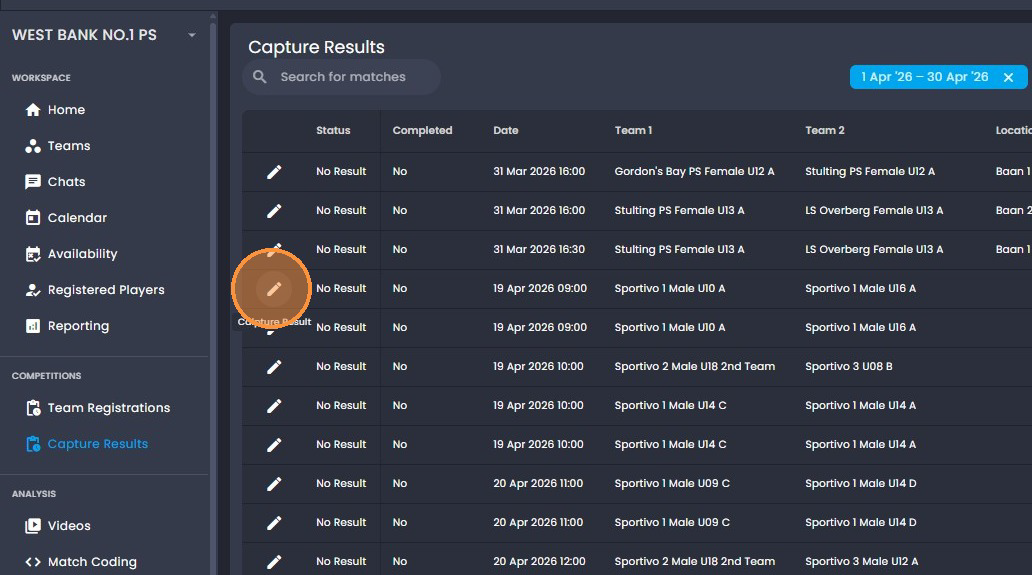
9. Click on " Confirm Result".
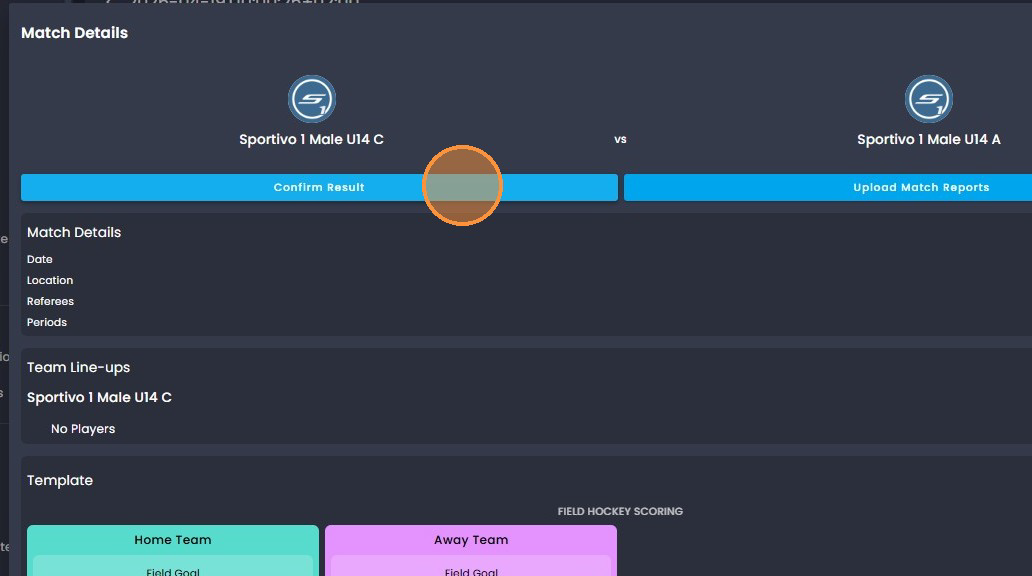
10. Click the "Enter Score" field and enter the score for both the home and
away teams.
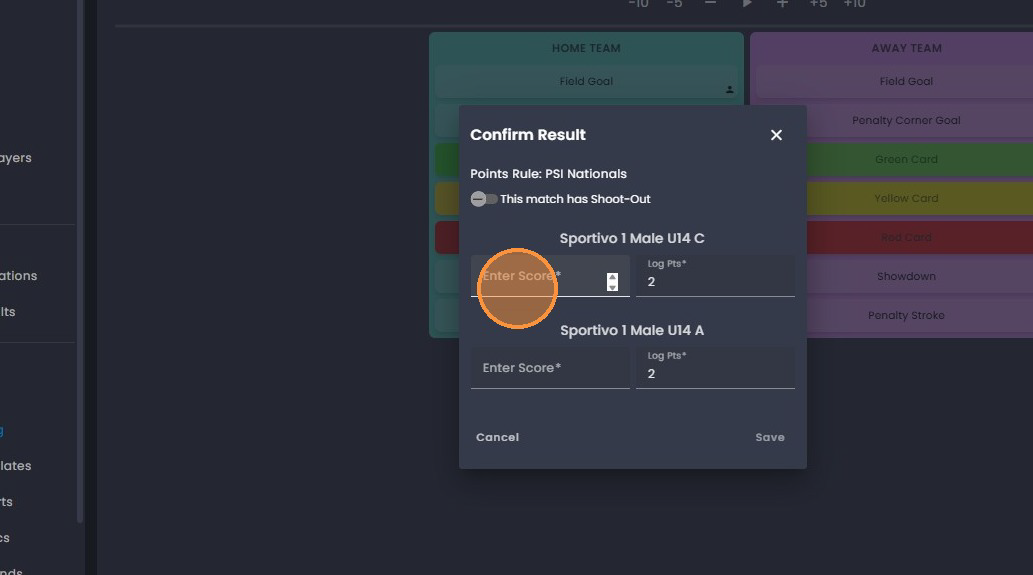
11. Click "Save".
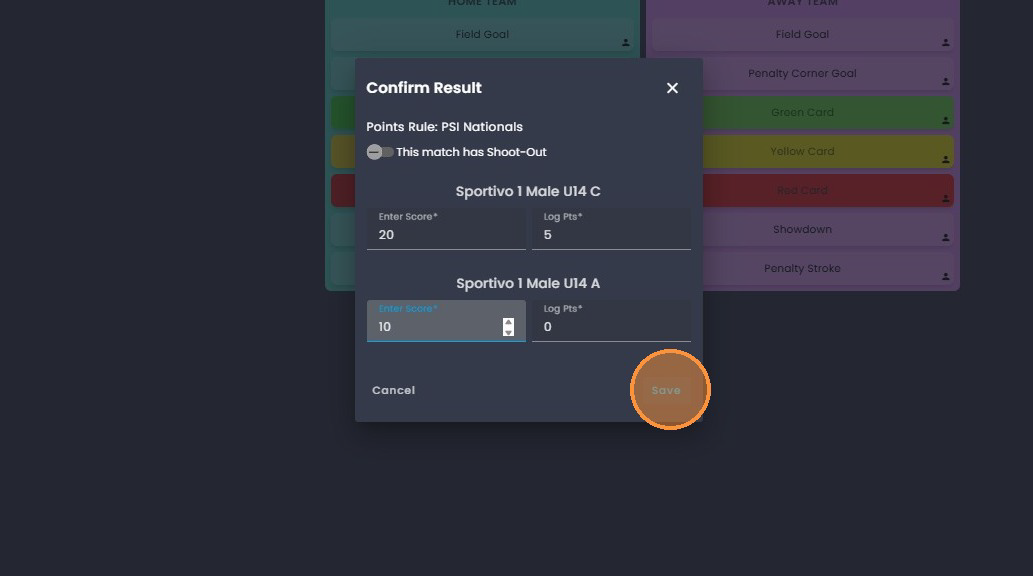
12. Click "Done".
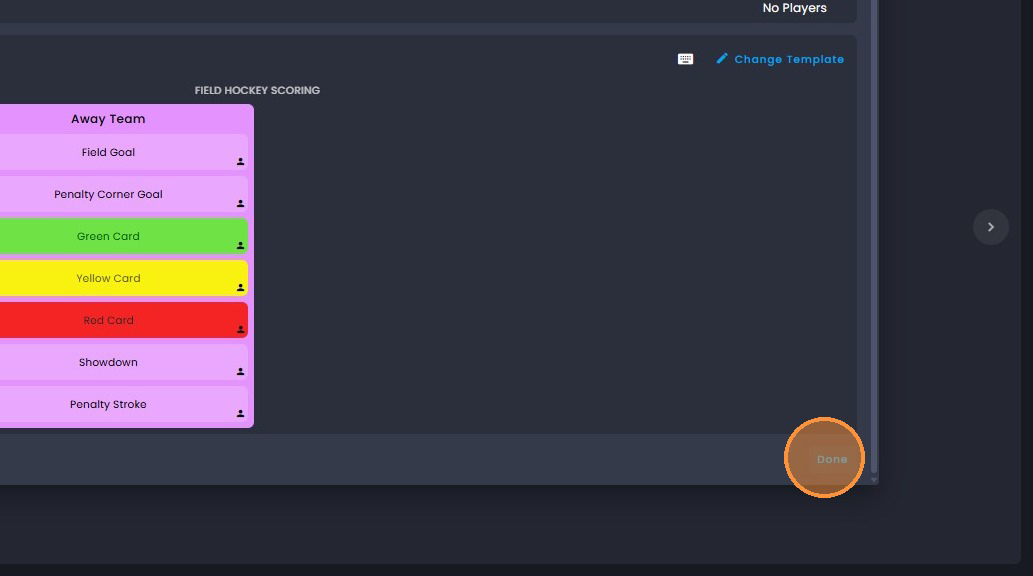
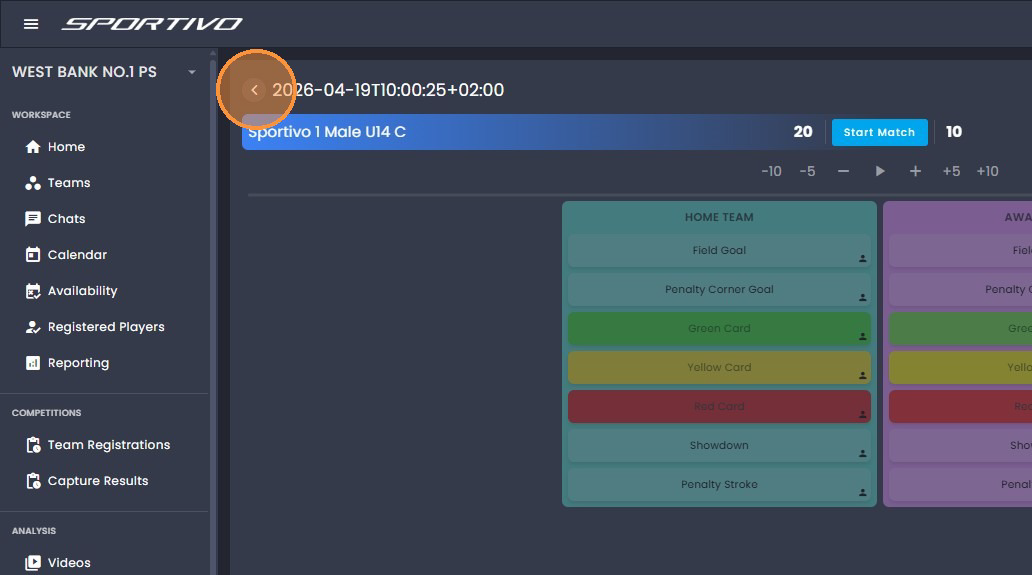
13. Click on the "<" arrow to return the the Capture results list to enter the
next match results by clicking on the "pencil icon" and confirm result
Was this article helpful?
That’s Great!
Thank you for your feedback
Sorry! We couldn't be helpful
Thank you for your feedback
Feedback sent
We appreciate your effort and will try to fix the article