Results can be captured and updated directly on the fixture screen. A Tech Table screen will appear, allowing you to capture, edit, and save match details to ensure accurate scoring and logs.
All player information can be added, and detailed match statistics can be recorded — including goals, penalties, and cards.
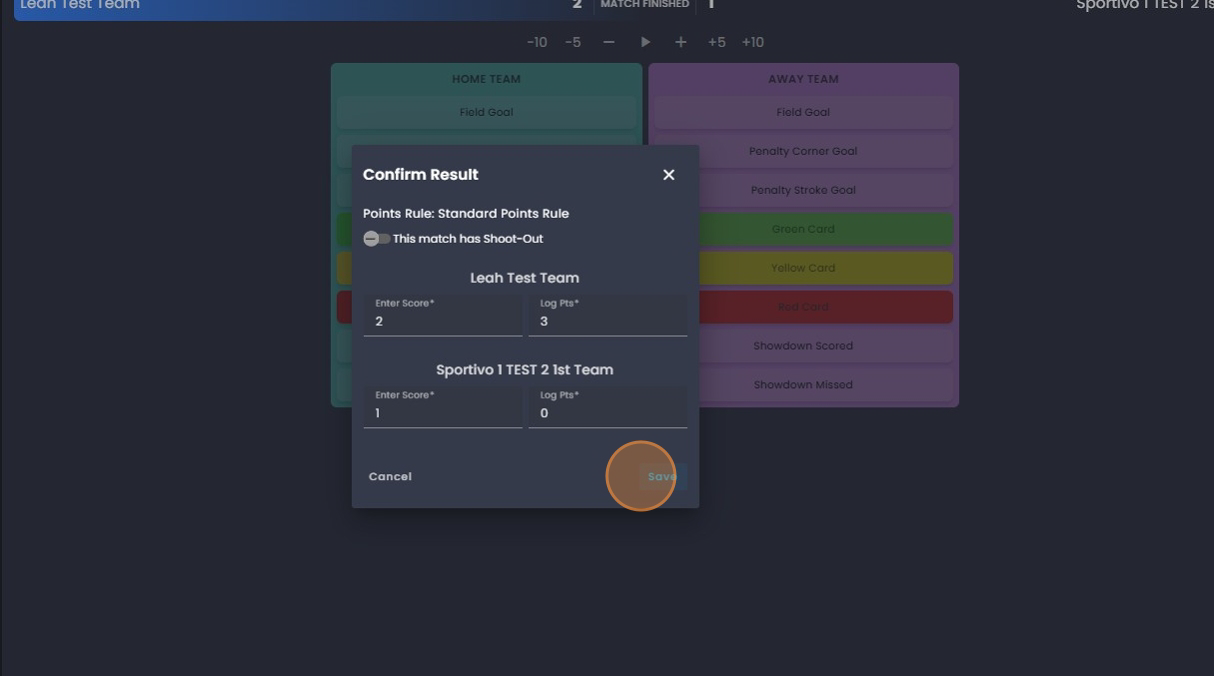
Once the match is completed, the result can be confirmed, and the app will automatically calculate log points based on the outcome.
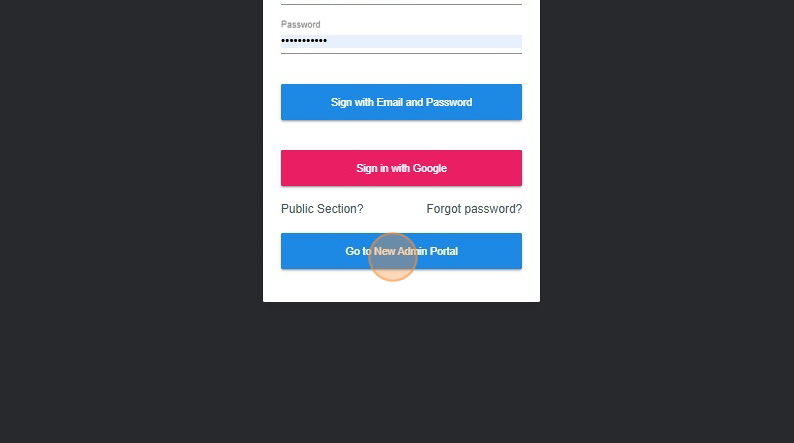
1. Click "Go to New Admin Portal"
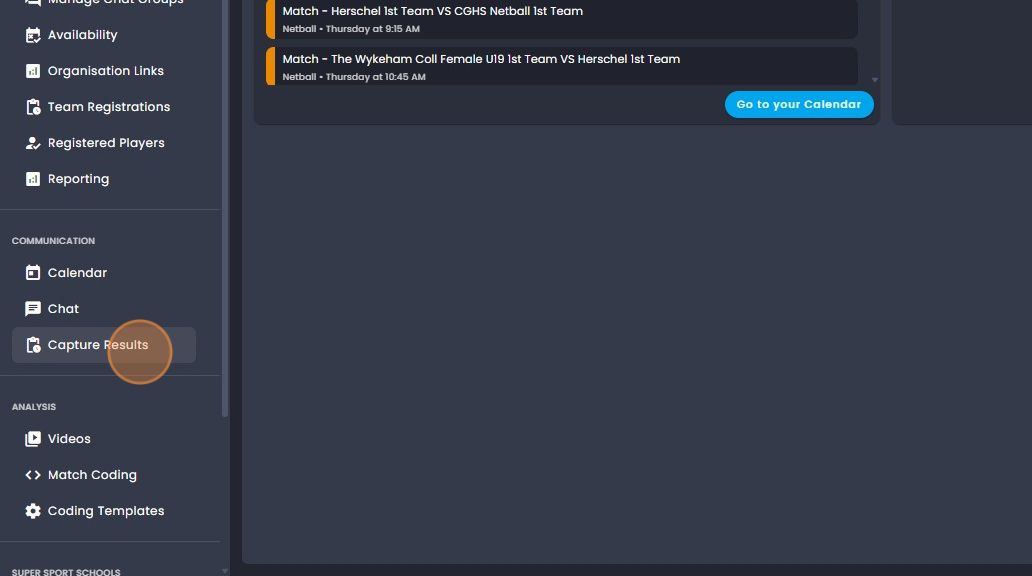
2. Click on "Capture Results".
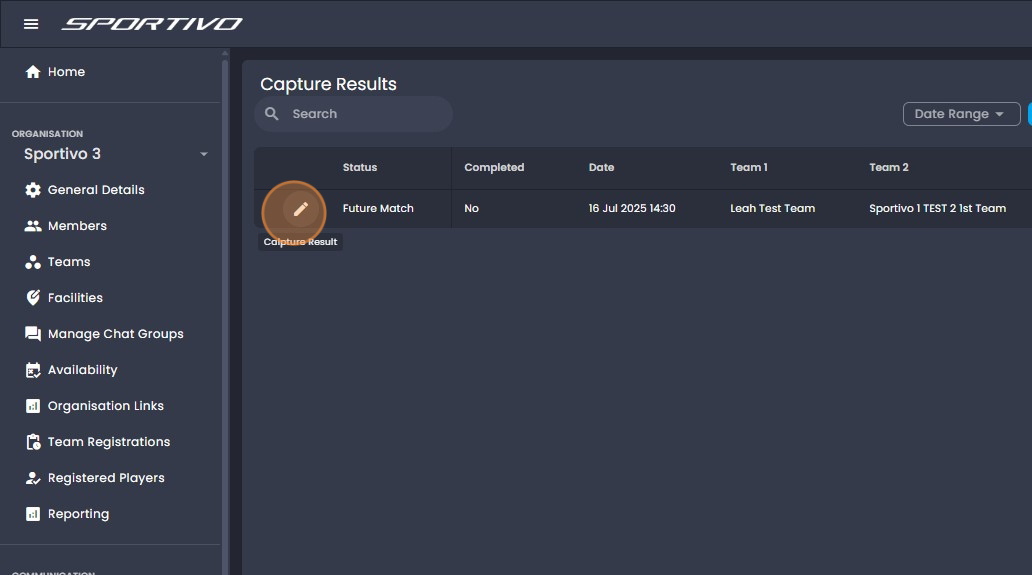
3. Click on the pencil icon alongside the match you want to score.
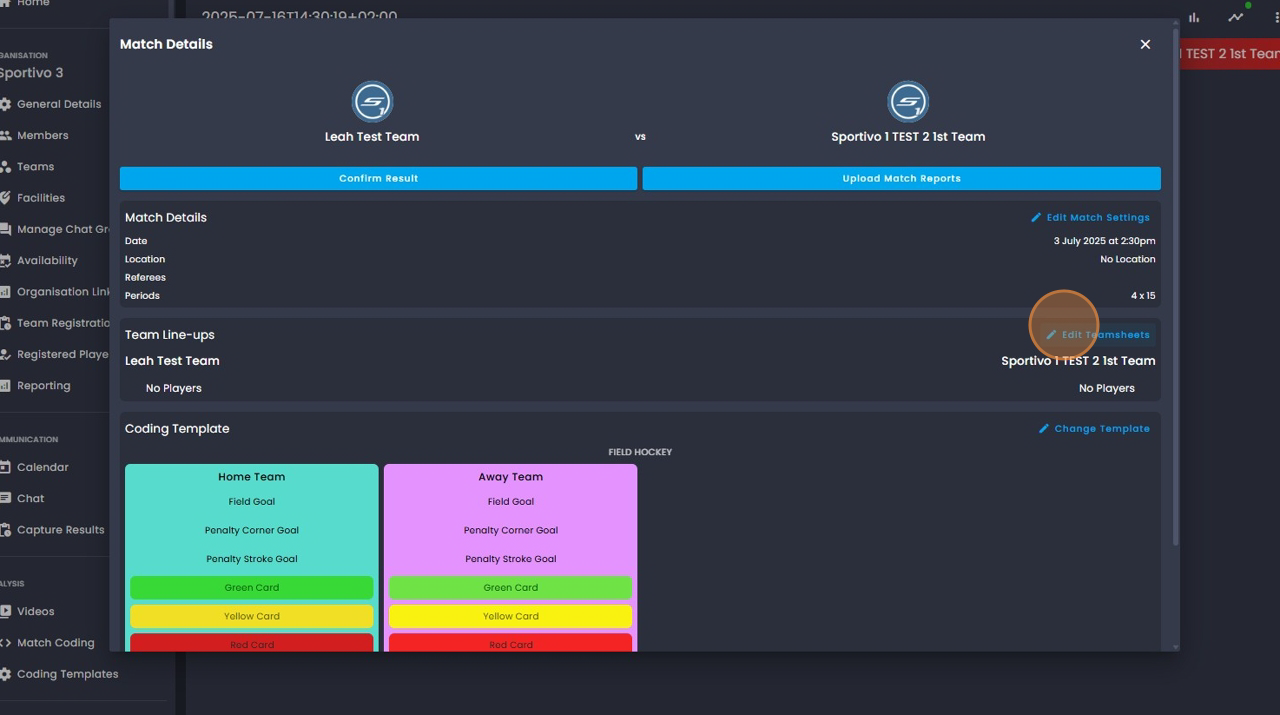
4. Click on "Edit Teamsheets".
5. Click "Reset from Default Lineup" to load your line up if player stats are being captured.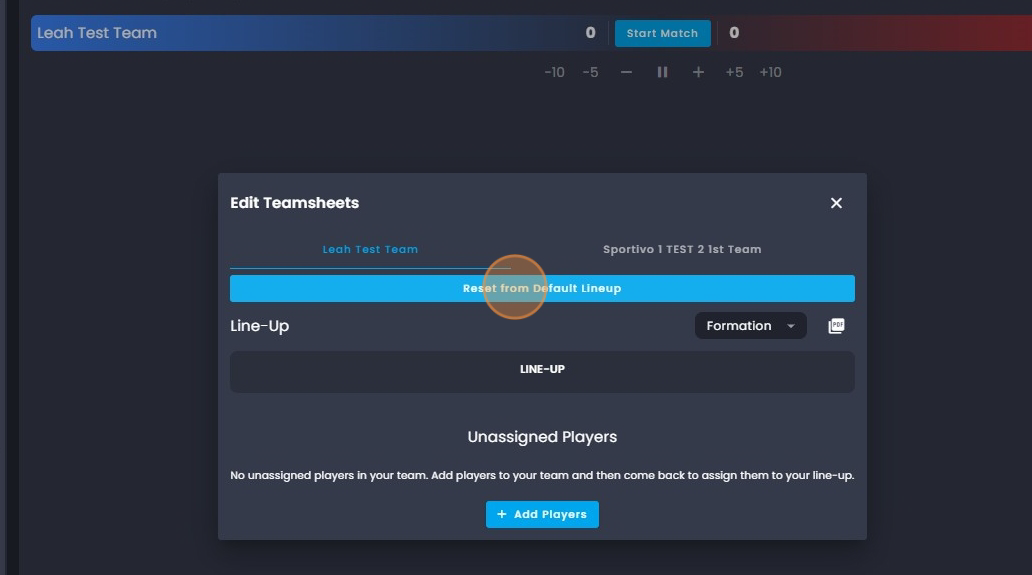
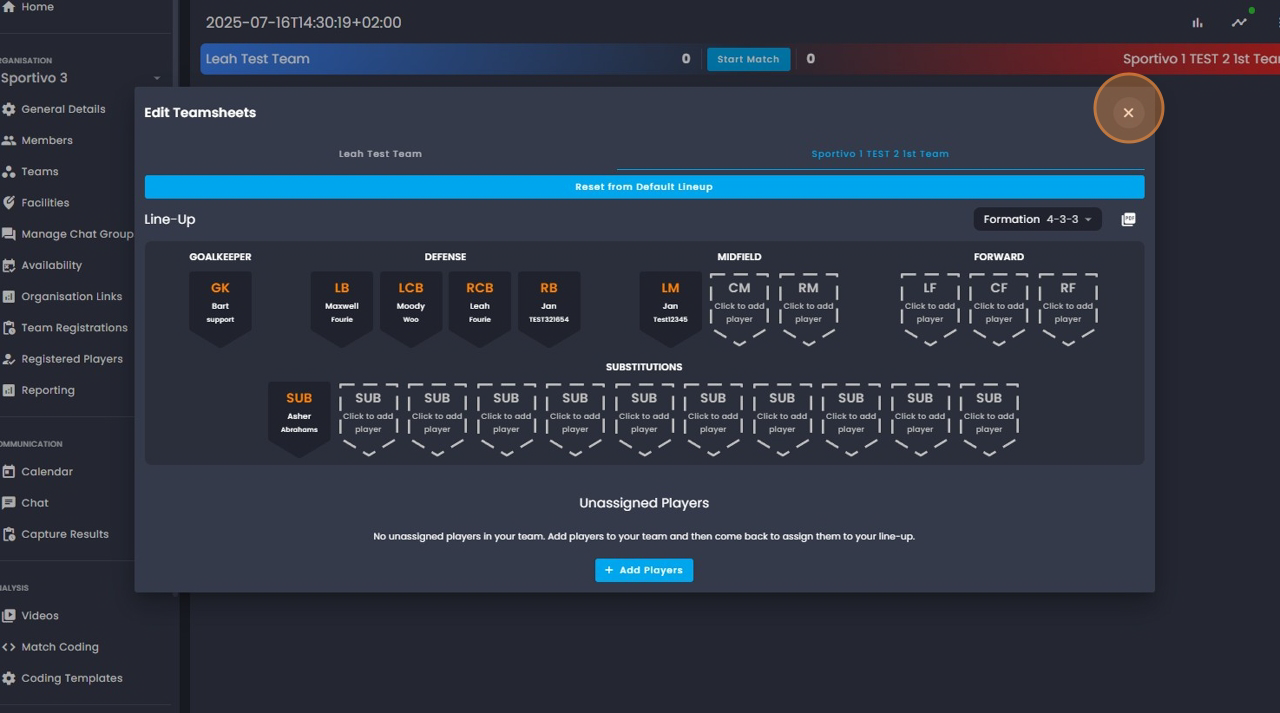
6. Once your line up is correct and completed you may click on "x" to exit.
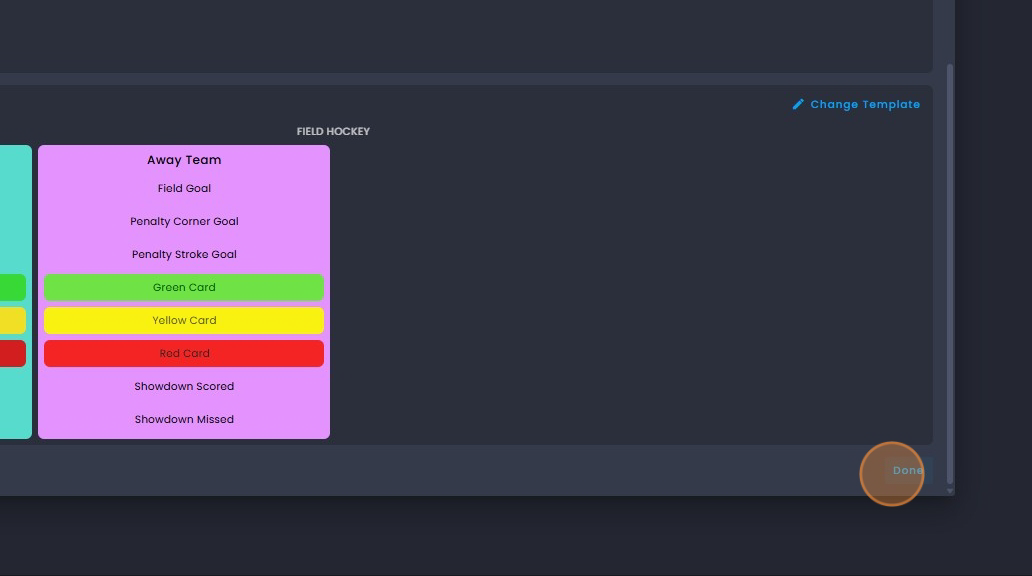
7. Once all match details are entered, click "Done".
8. To begin capturing results click on "Start Match".
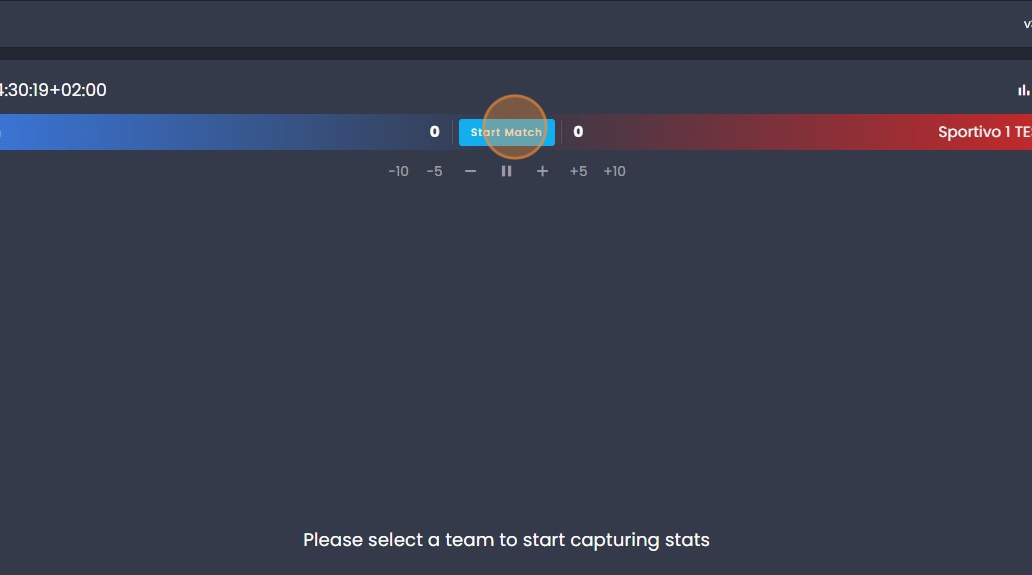
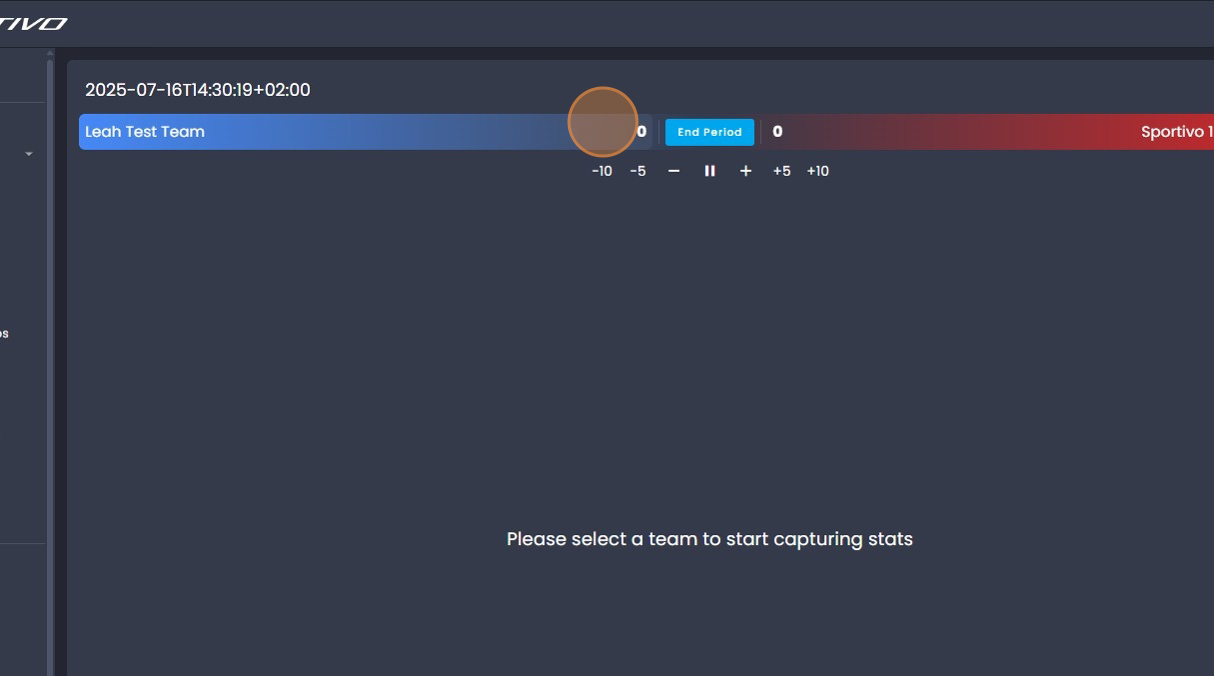
9. Click on the team you want to capture results for. This will also allow for
to capture results for the away team.
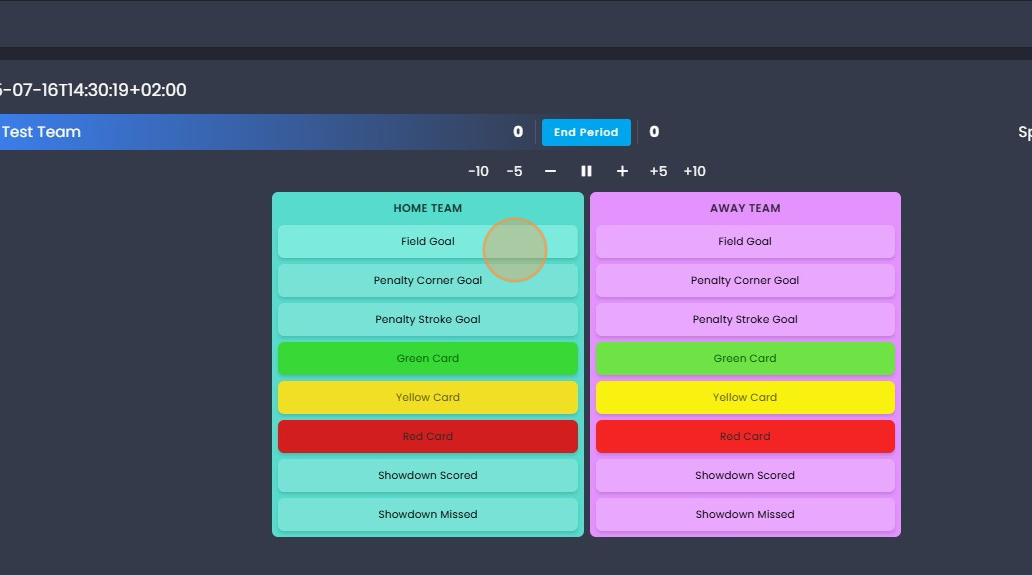
10. Click on the appropriate statistic for each team - Away team refers to
the opposition.
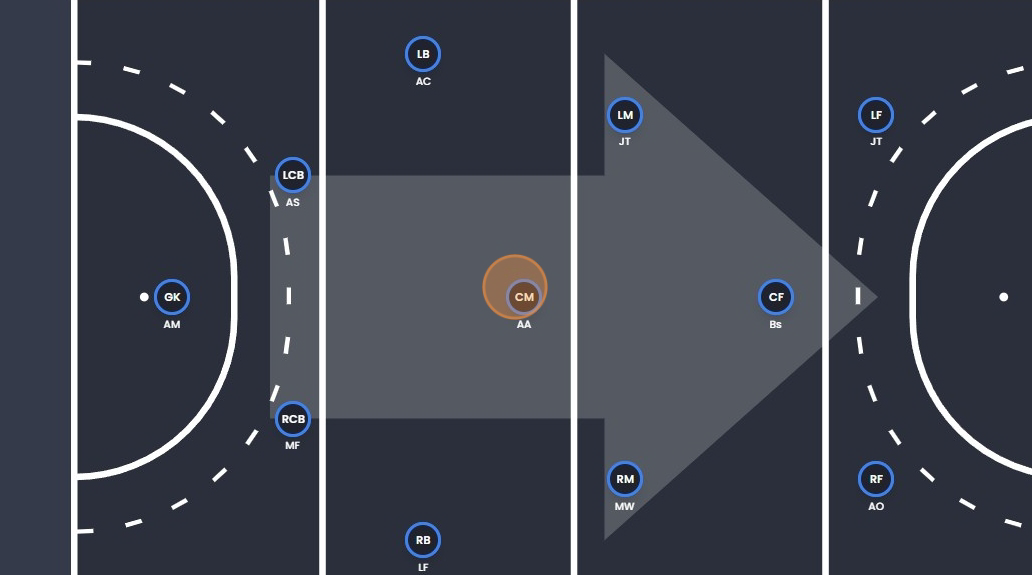
11. Click on the player to assign him/her to the statistic.
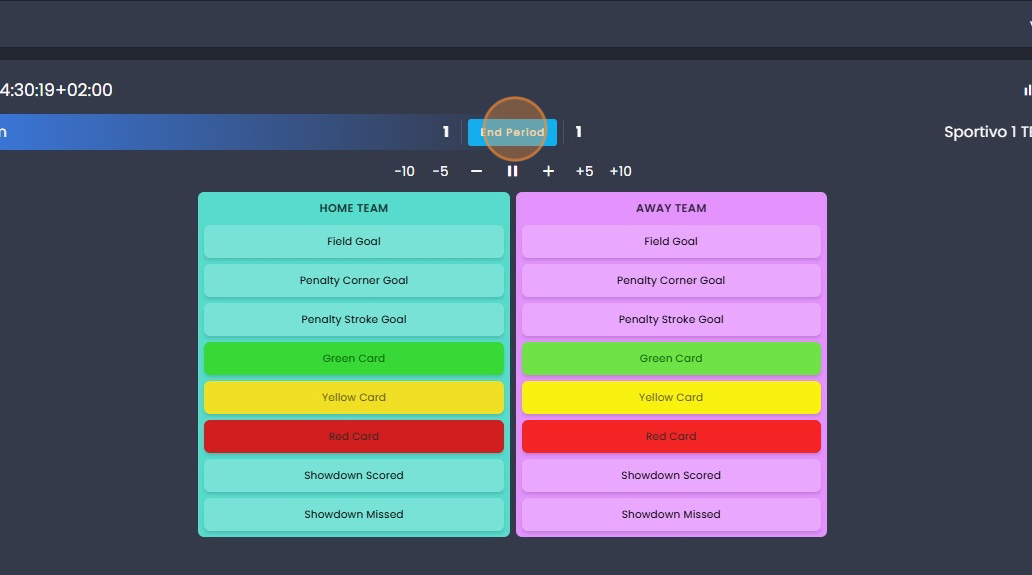
12. Click on "End Period" This ends the first quarter/halve depending on
the periods per match.
13. To begin the second period click on "Start Period".
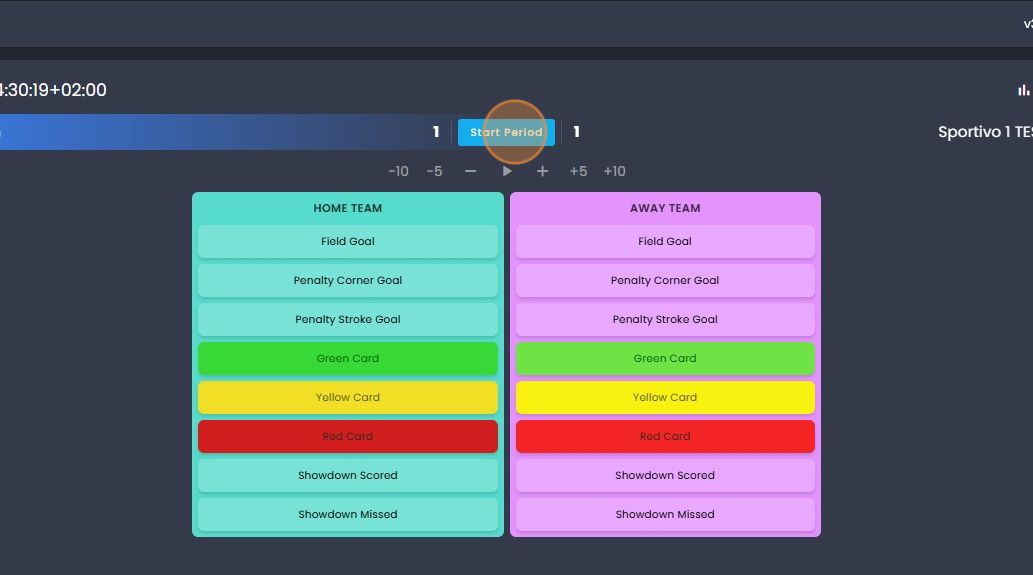
Follow the same process to add and update the statistics
accordingly.
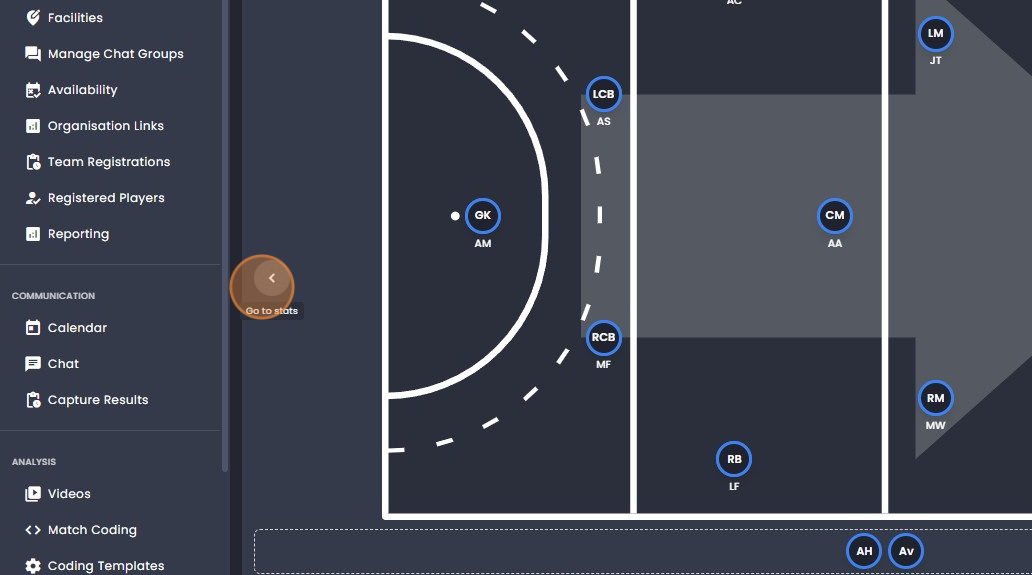
14. Click on the side arrow to make a substitution.
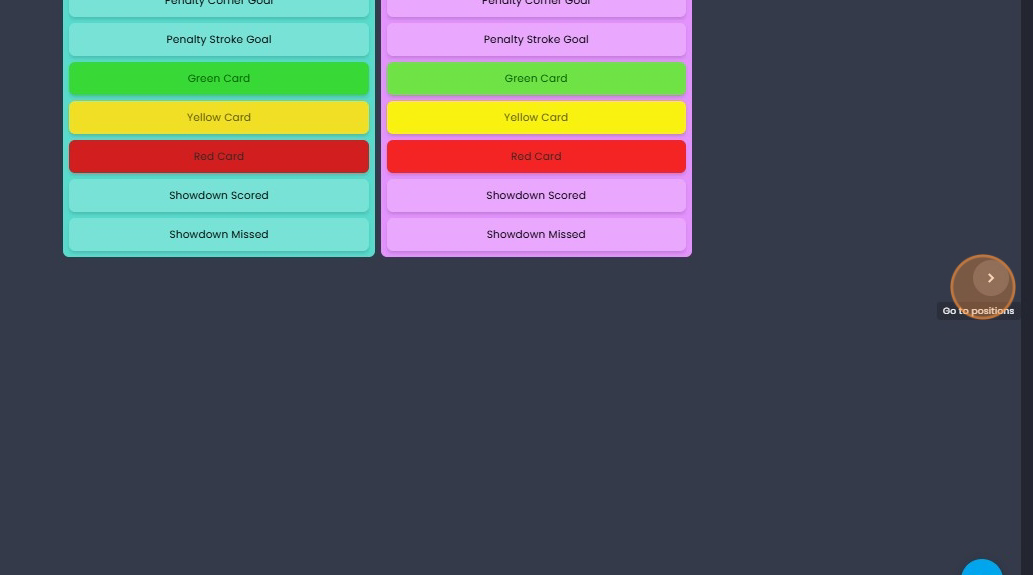
15. Click on the player you wish to sub off and drag him/her to the bench
line up below.
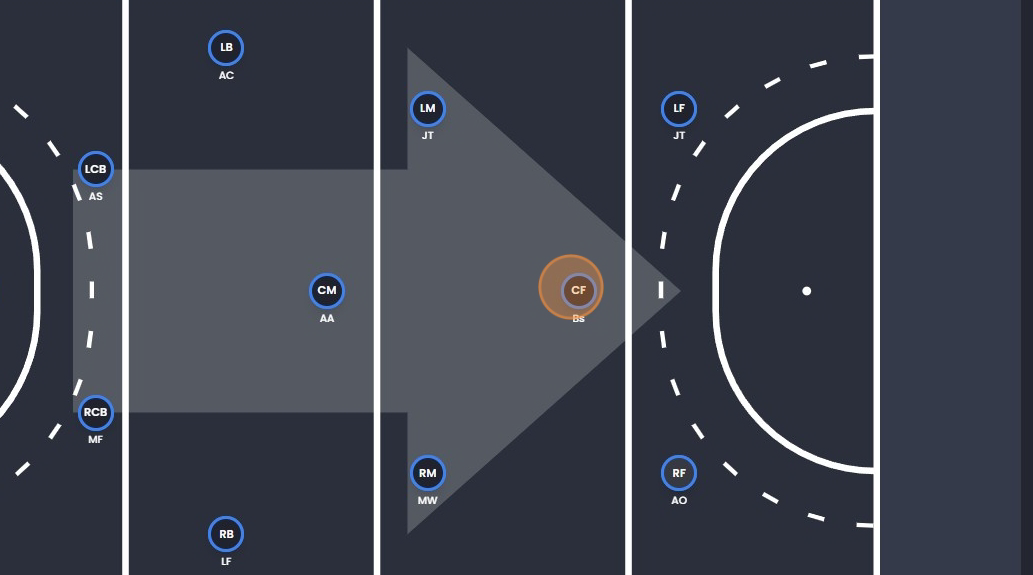
16. Once you have subbed off player you can then drag the player you
wish to replace subbed off player into that position.
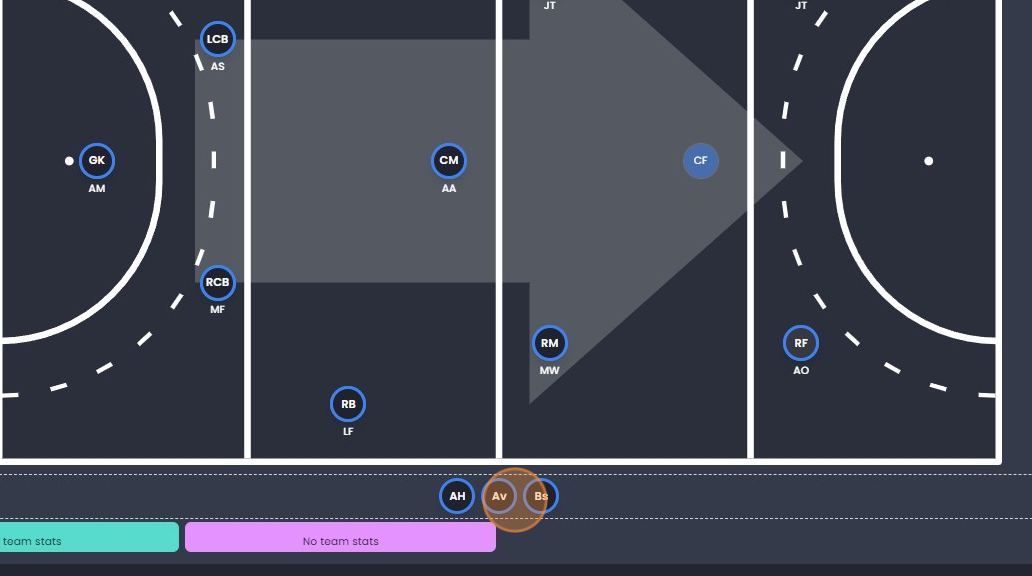
17. Once you have completed the substitutions click on the arrow on the
right side of the screen to continue capturing results.
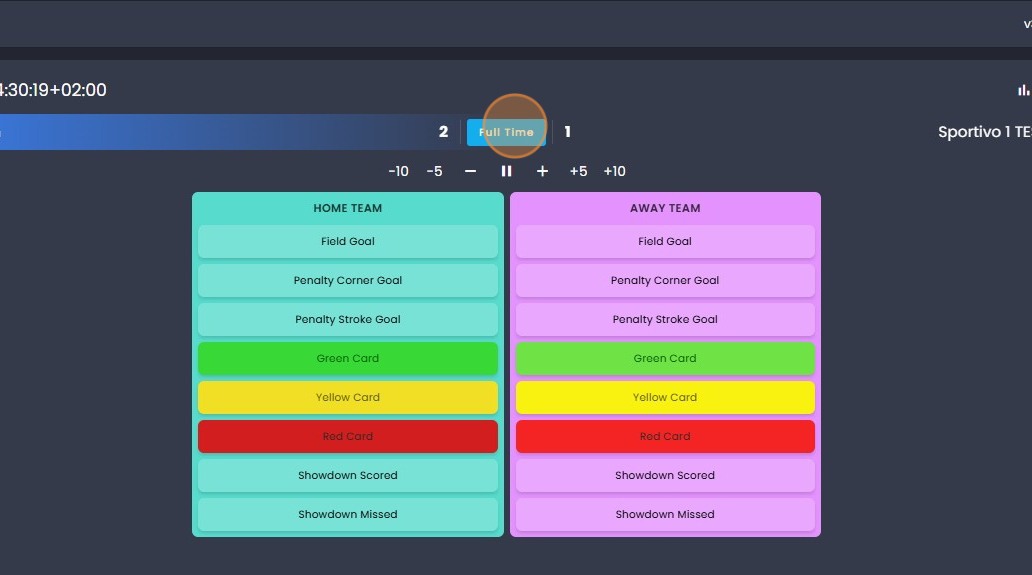
18. When you have completed capturing results for each period you can
click full time to end match.
19. Once have you have clicked full time you will then need to confirm
result by clicking save if the score and log points are correct.
Was this article helpful?
That’s Great!
Thank you for your feedback
Sorry! We couldn't be helpful
Thank you for your feedback
Feedback sent
We appreciate your effort and will try to fix the article