Once the an ad-hoc match has been created in Sportivo, you can upload a video and begin coding the match for performance analysis. This allows you to quickly set up a match for coding when it's not part of an existing fixture.
1. To login "Go to New Admin Portal".

2. Click on "Match Coding".

3. Click on "Add Match Coding".
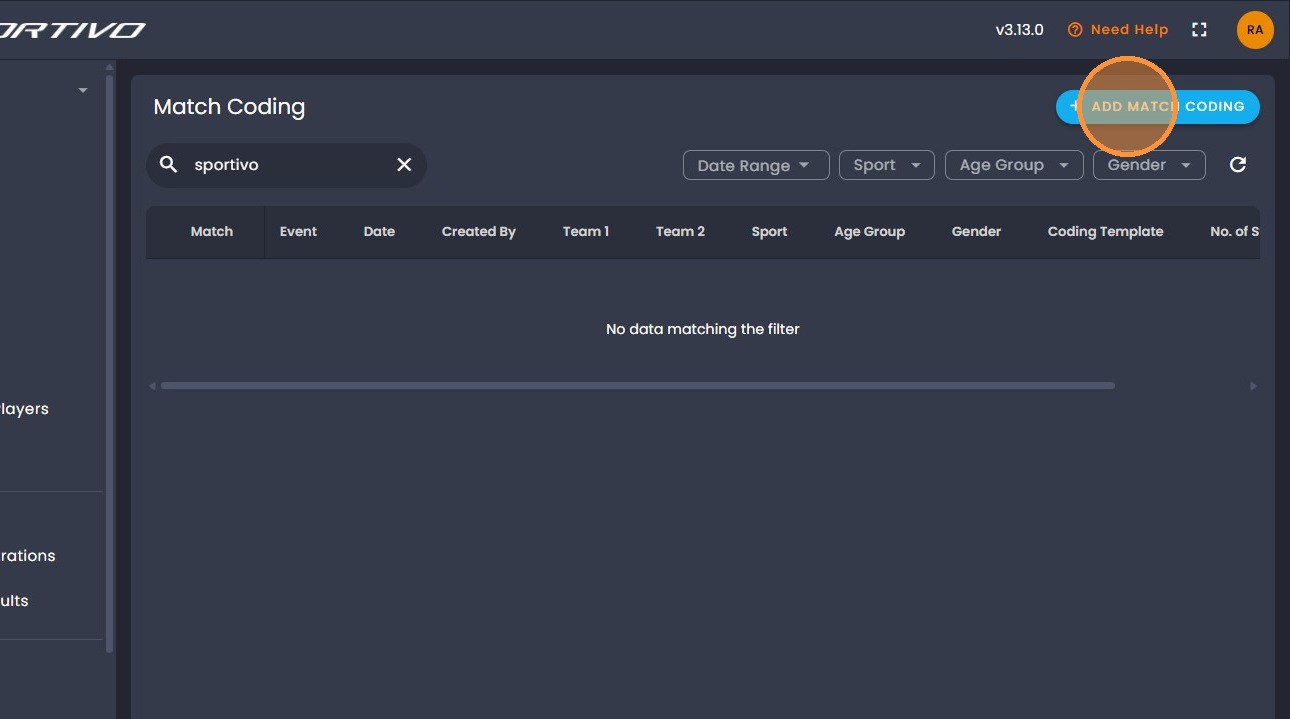
4. Click on "Sport" and select the appropriate Sport.
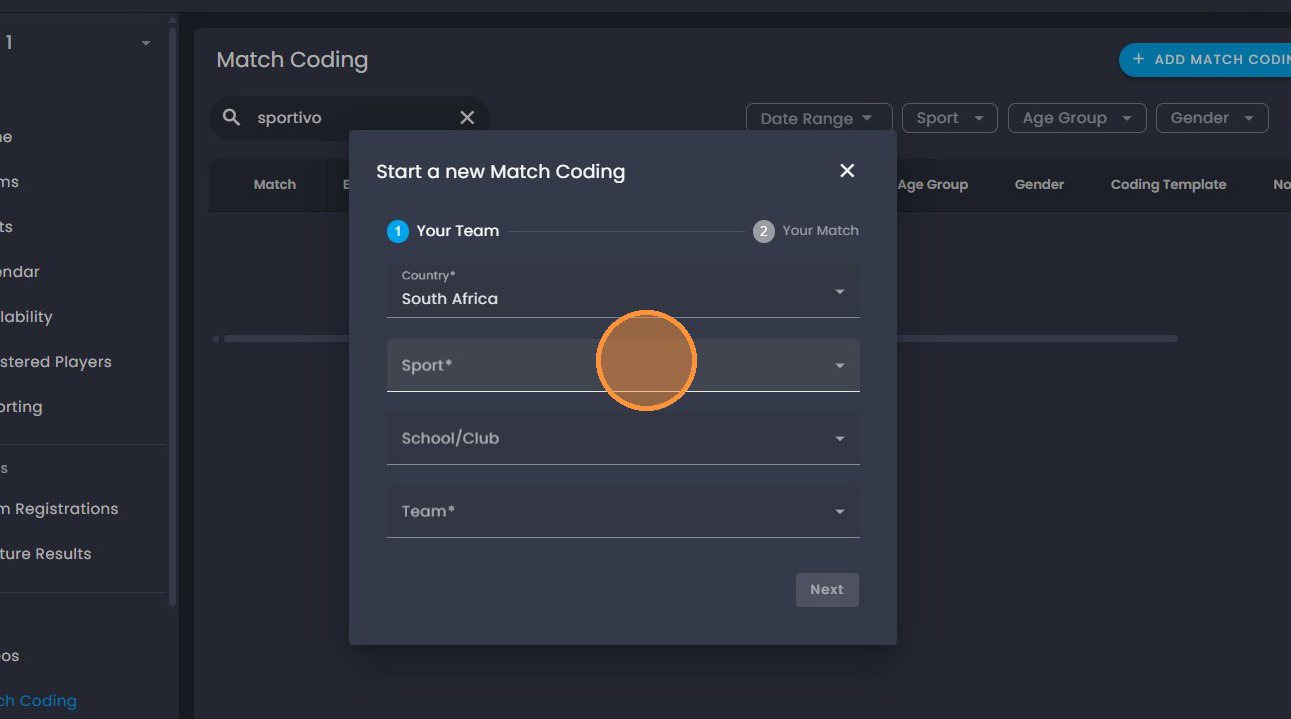
5. Select the appropriate sporting code.
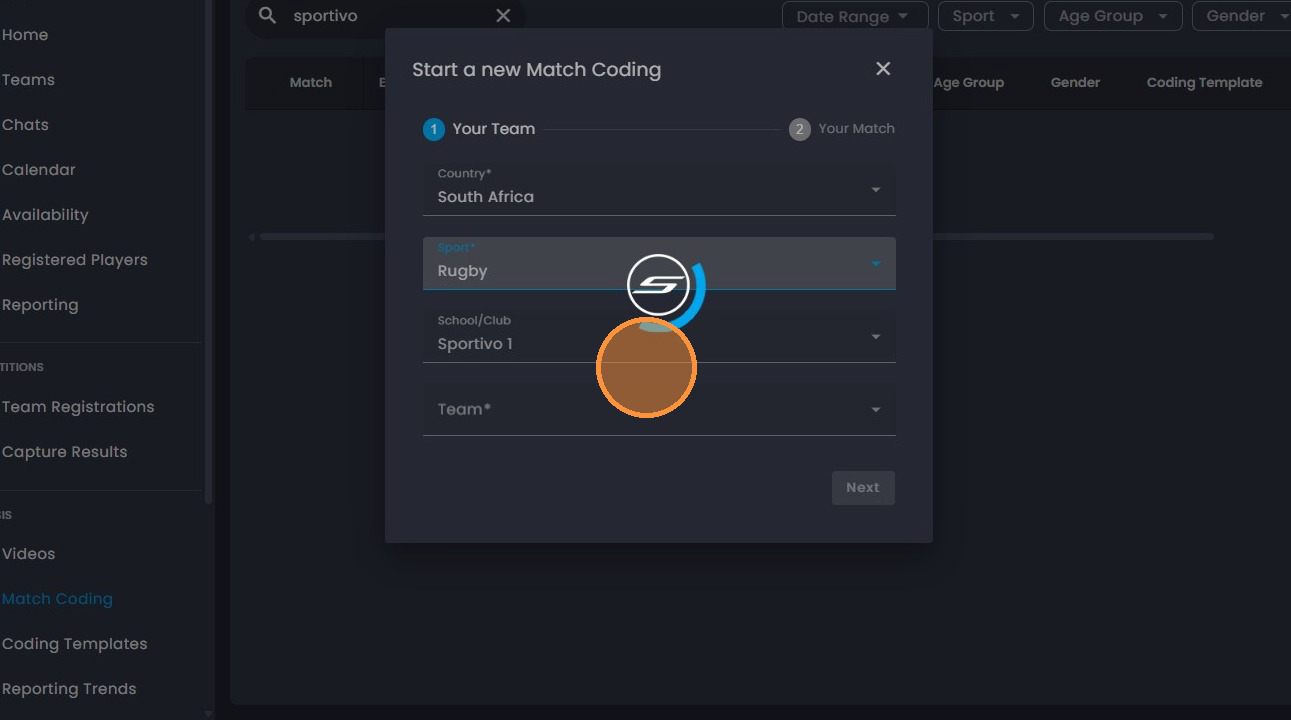
Please note: You will notice that once you select the sport it would already
have populated the school/club you are in.
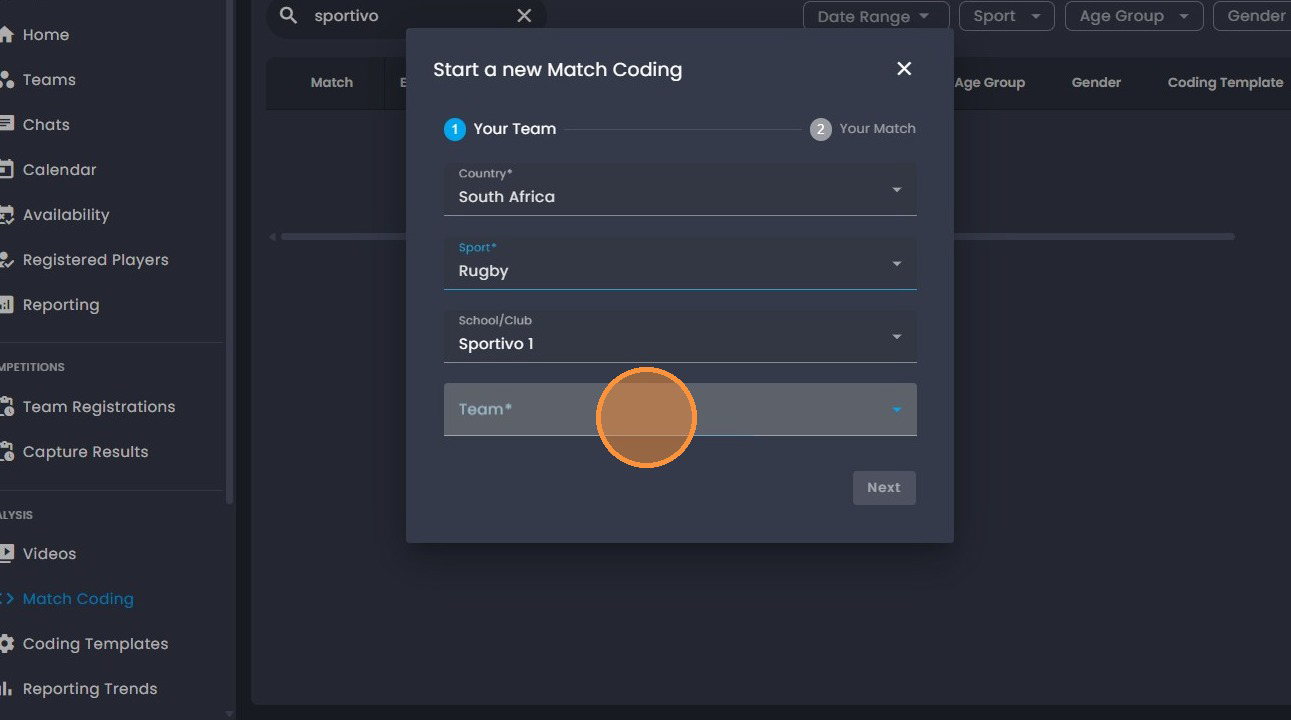
8. Click on "Team".
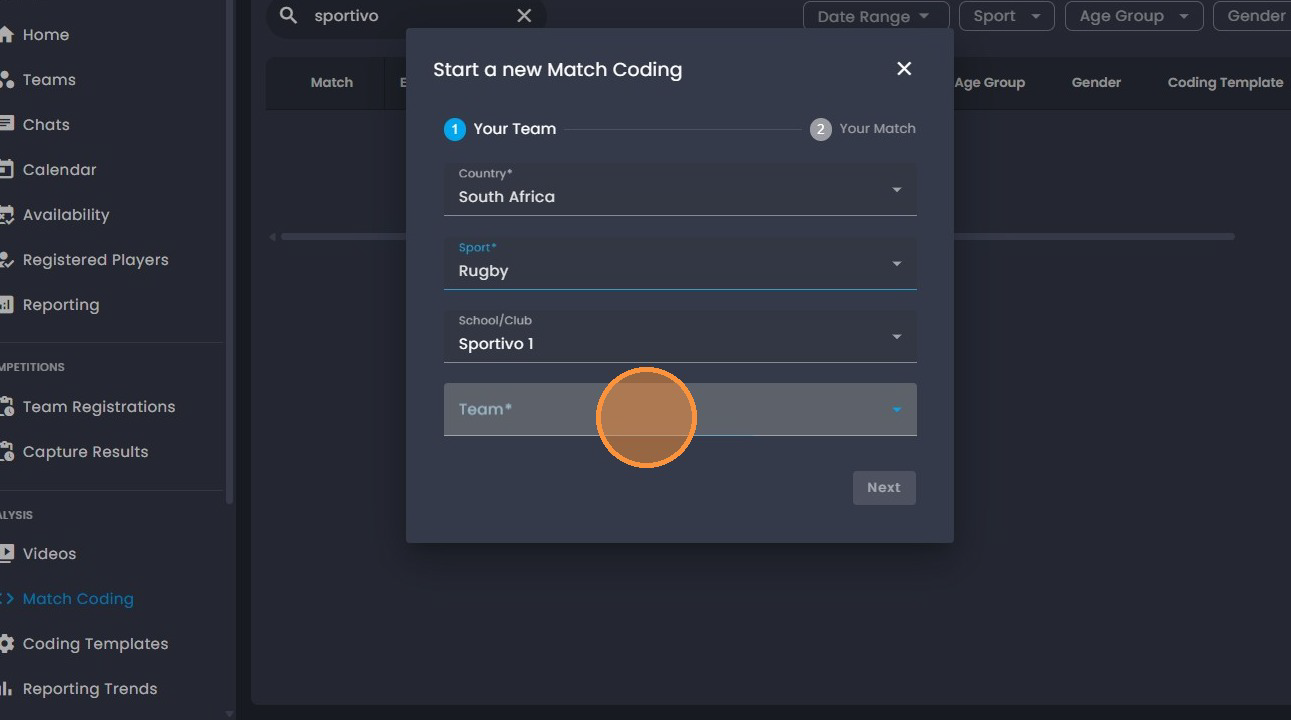
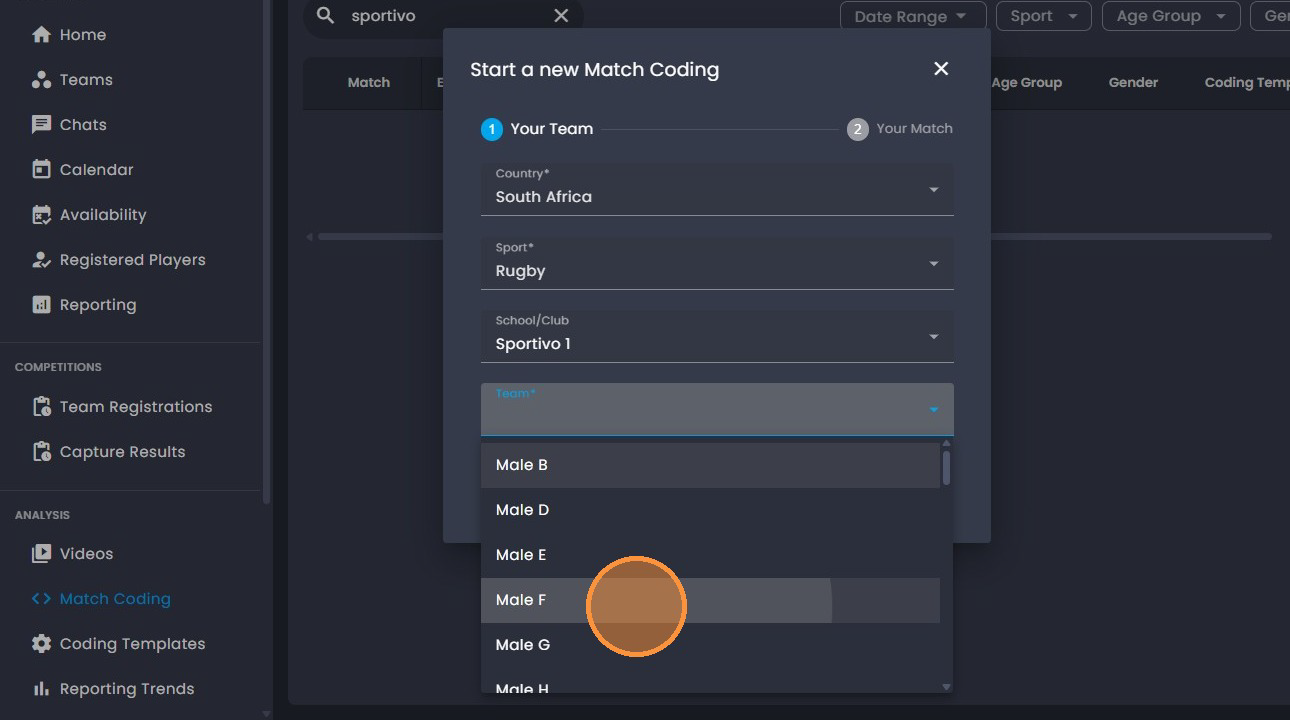
9. Click on the appropriate team.
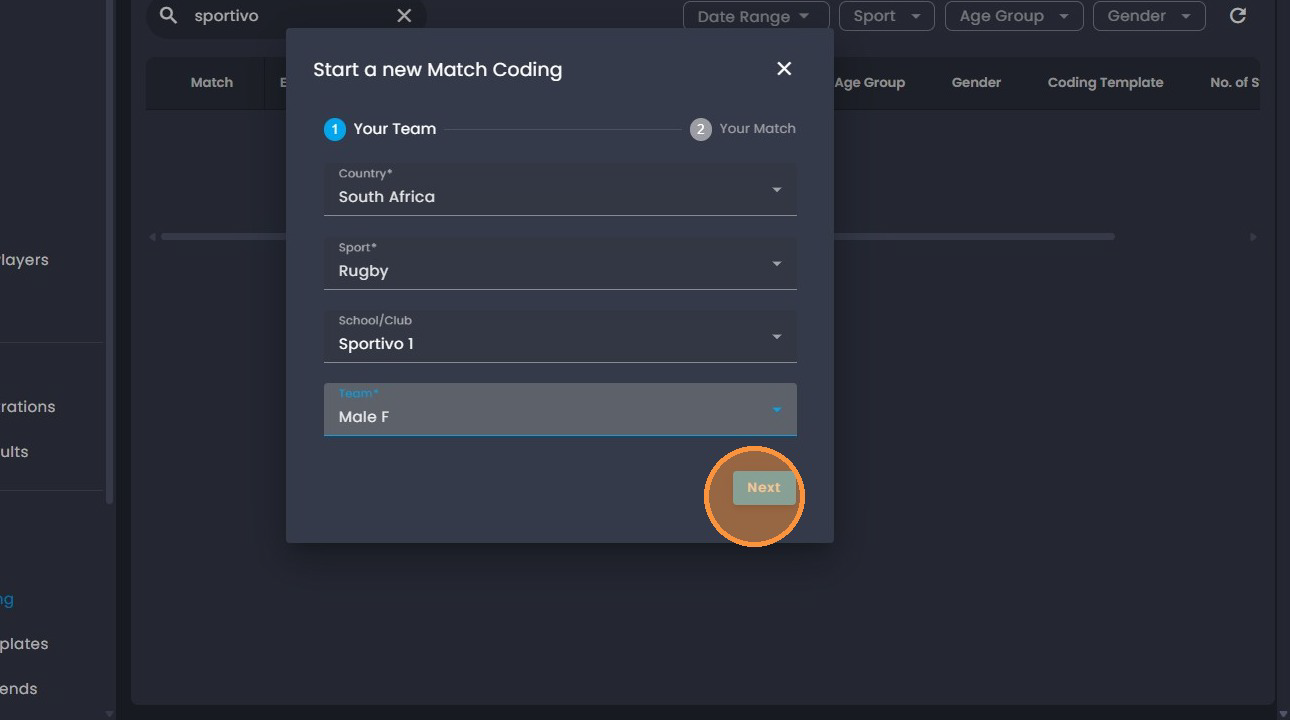
10. Click on " Next".
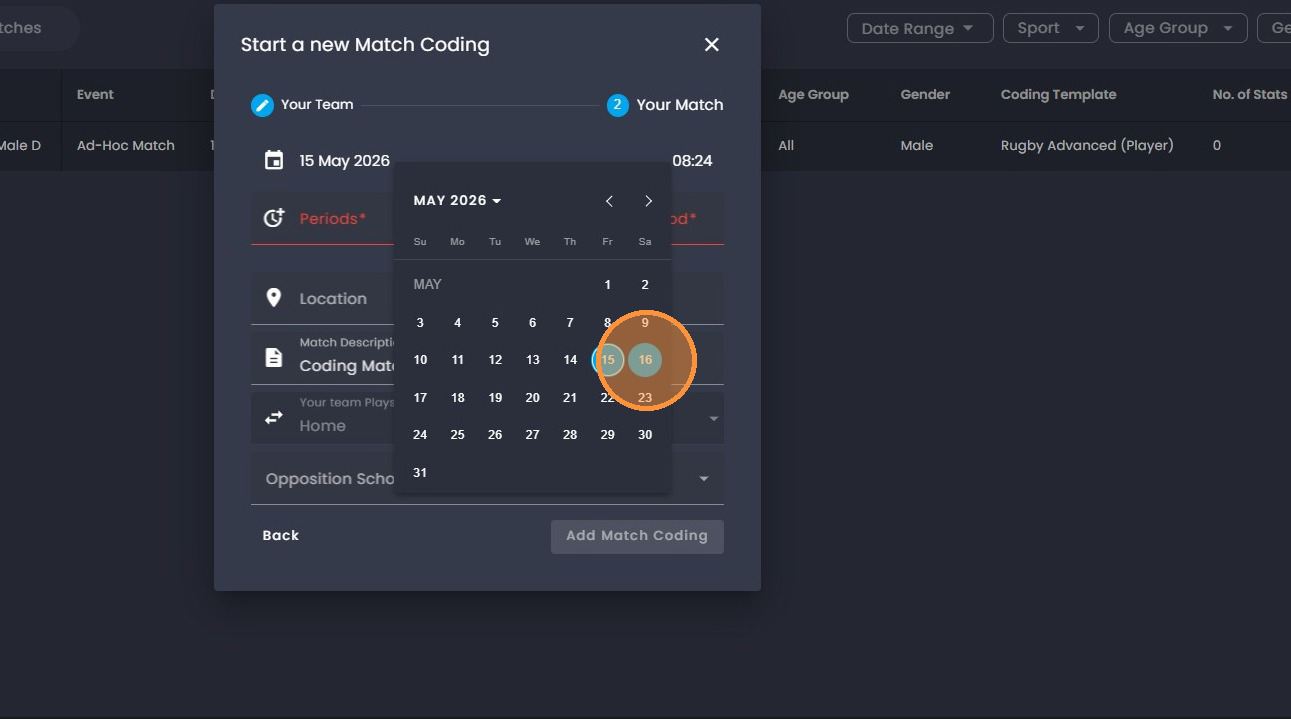
11. Please note that the date will default to todays date, to change please
click on the date.
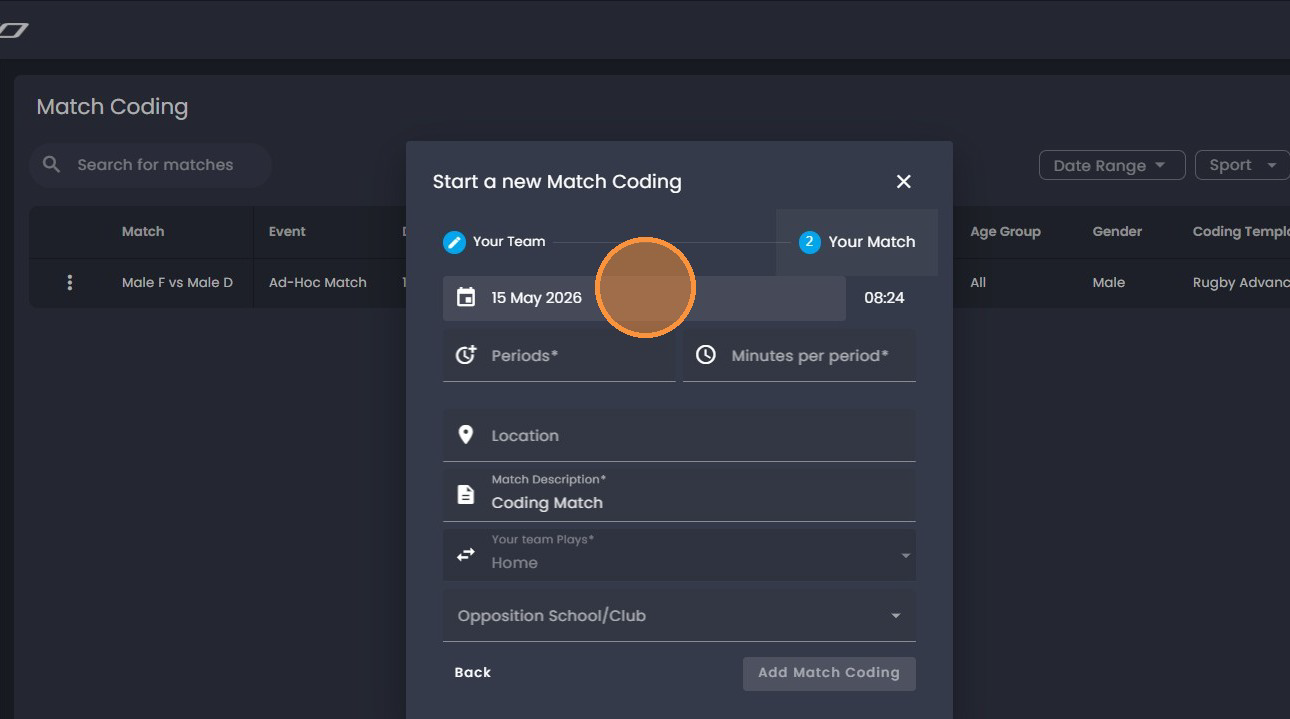
12. Select the appropriate date you would like to create the match for.
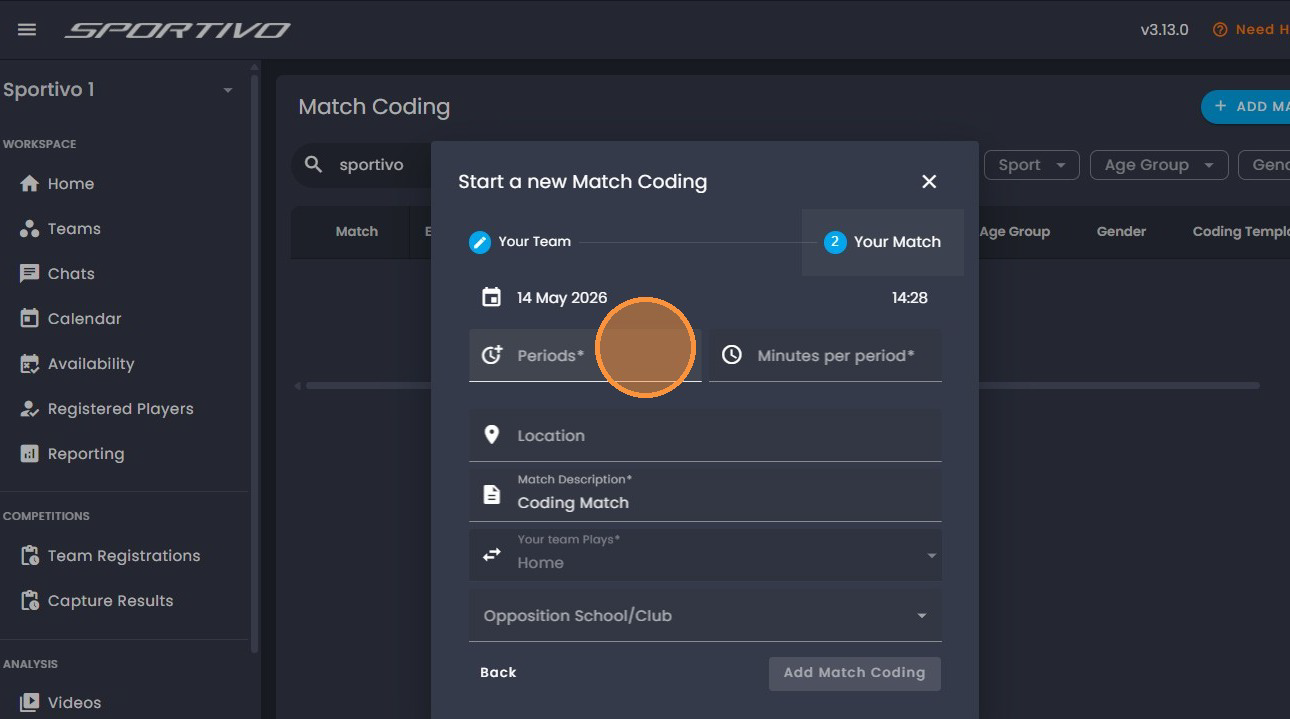
13. Click on "Periods". This will prompt you to add the correct periods per match
e.g 2 halves.
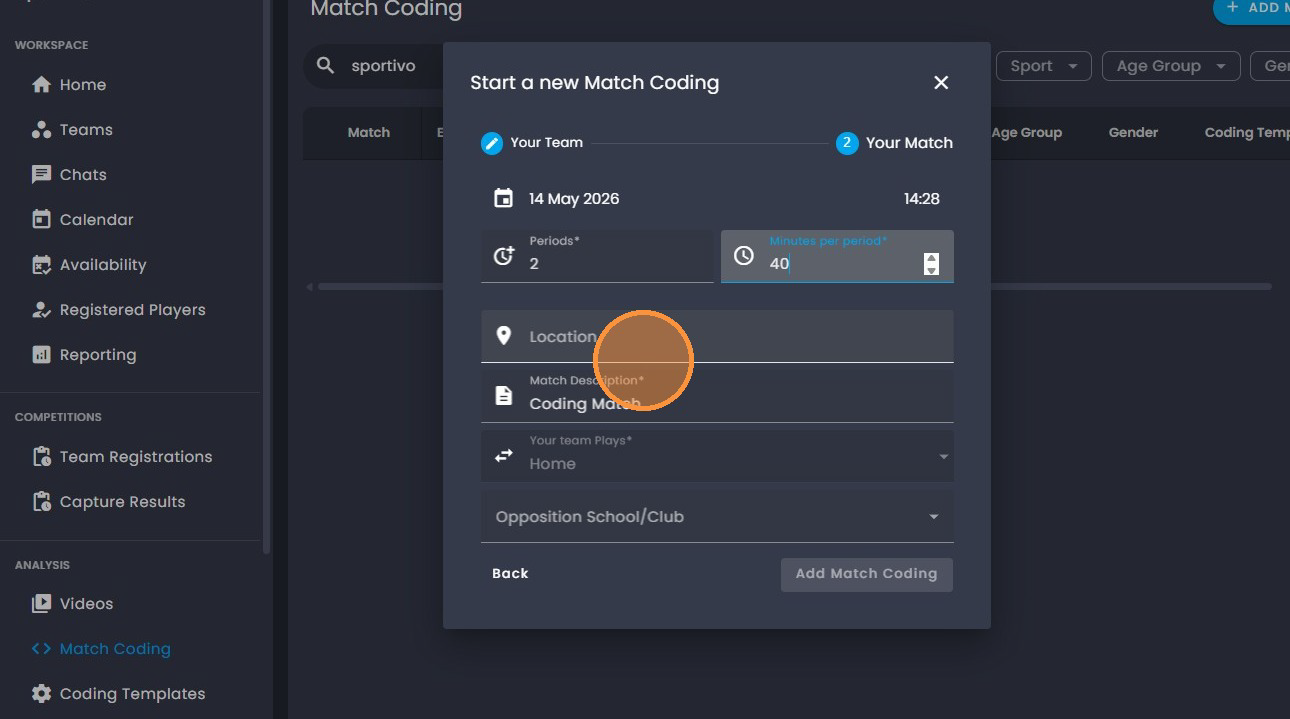
14. Click the "Minutes per period" and enter the minutes for each period
played.

15. Click on " Location" to add one if necessary or given.
16. Click on "Opposition" too add the school/club.
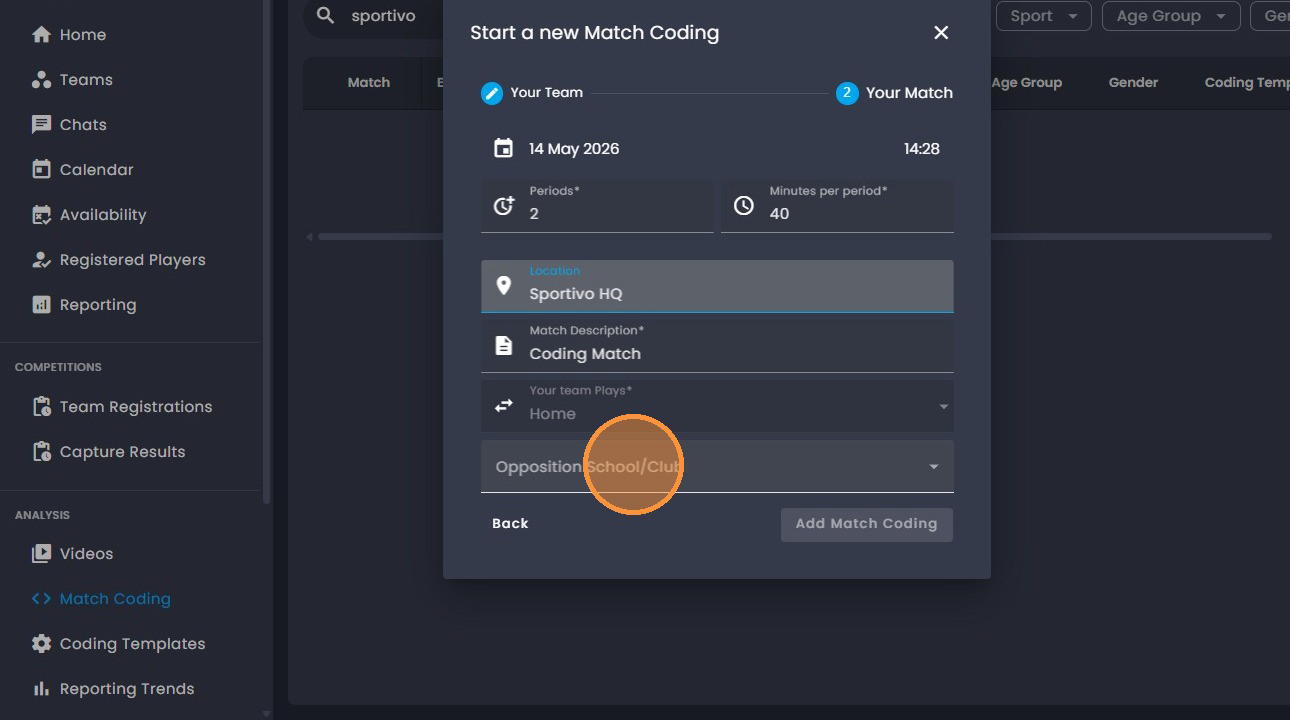
17. Click on "Opposition School/Club" search icon.
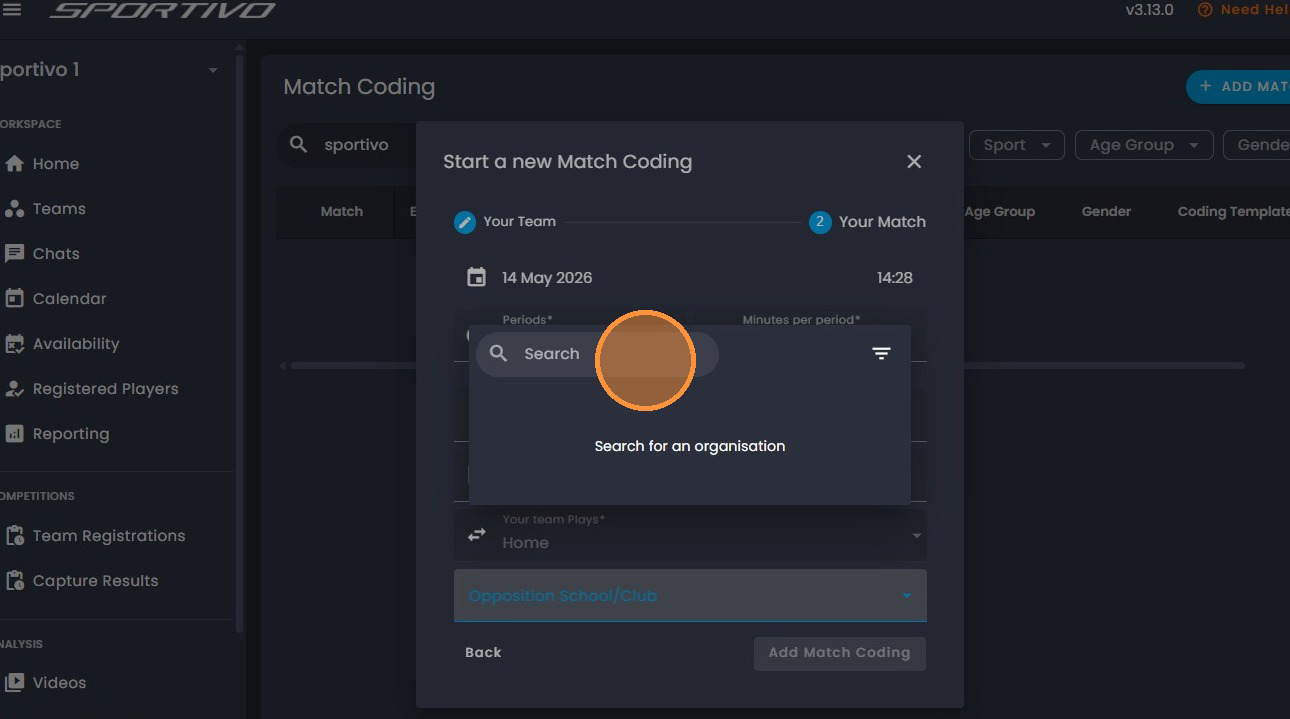
18. Click here to search opposition and select the opposition school/club.
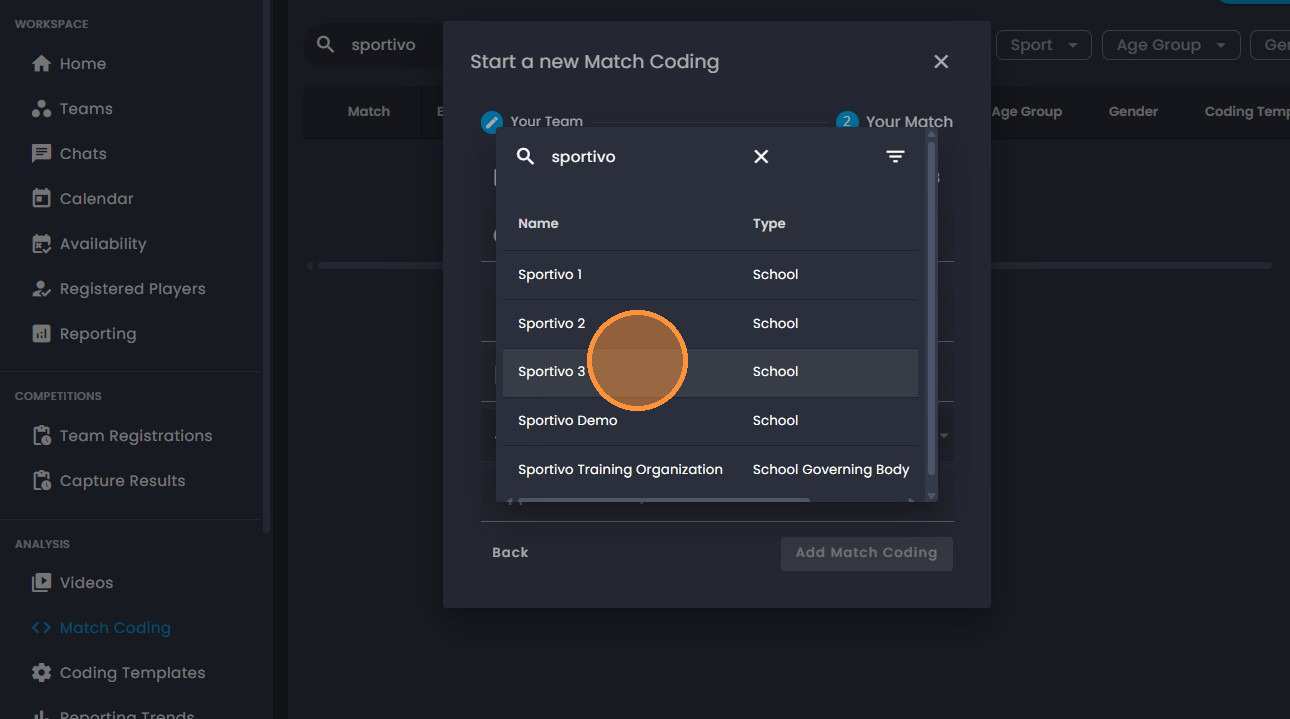
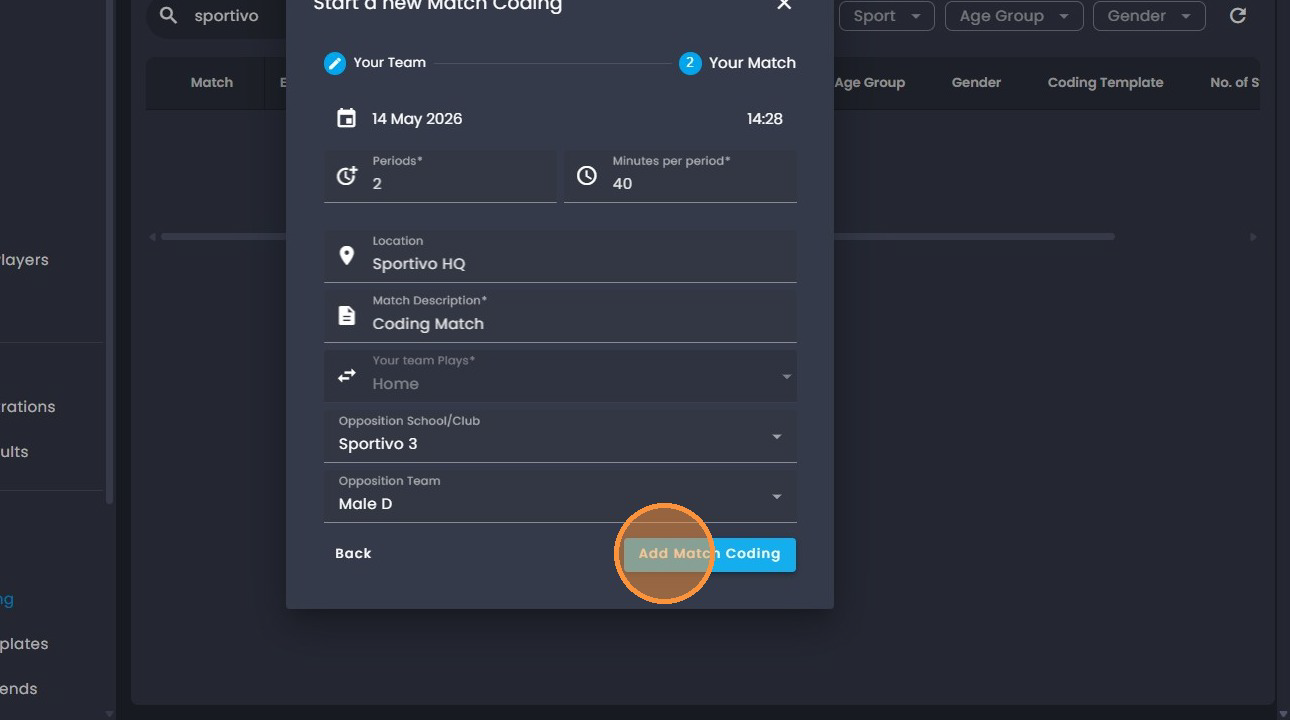
21. Click on "Opposition team".
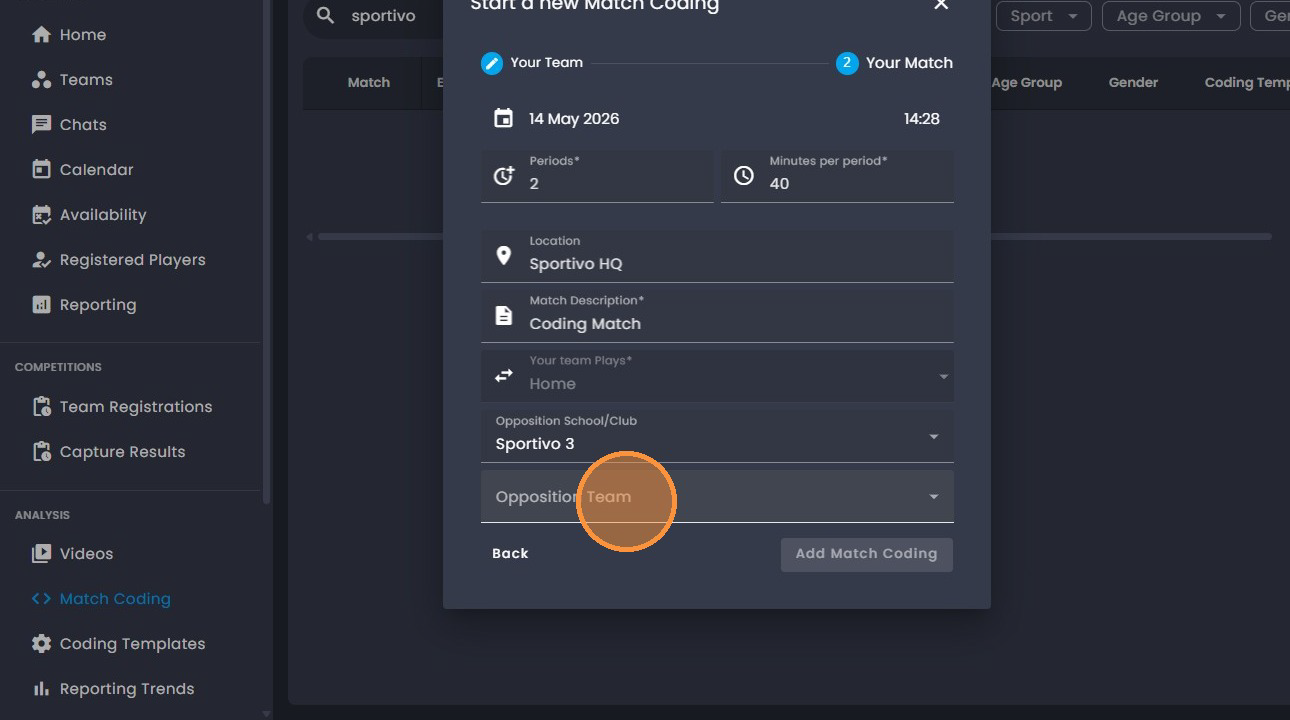
22. Select the team for the opposition.
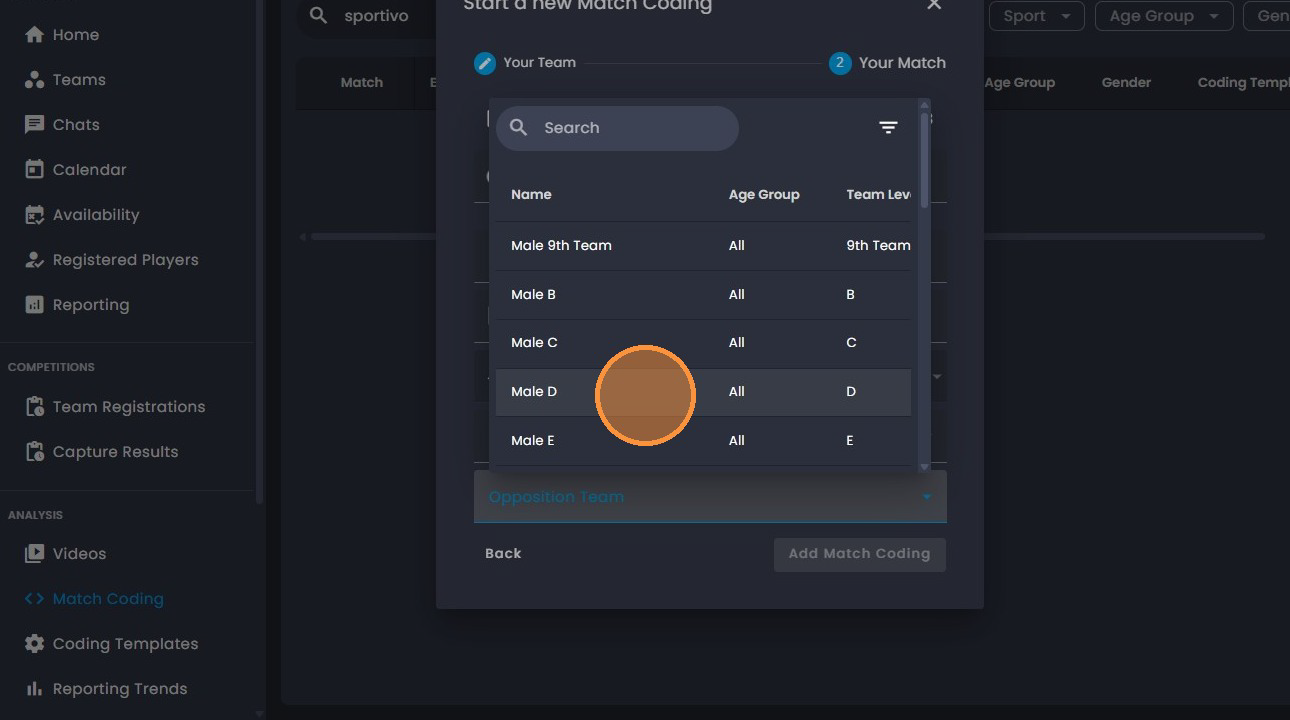
23. Click on " Add Match Coding".
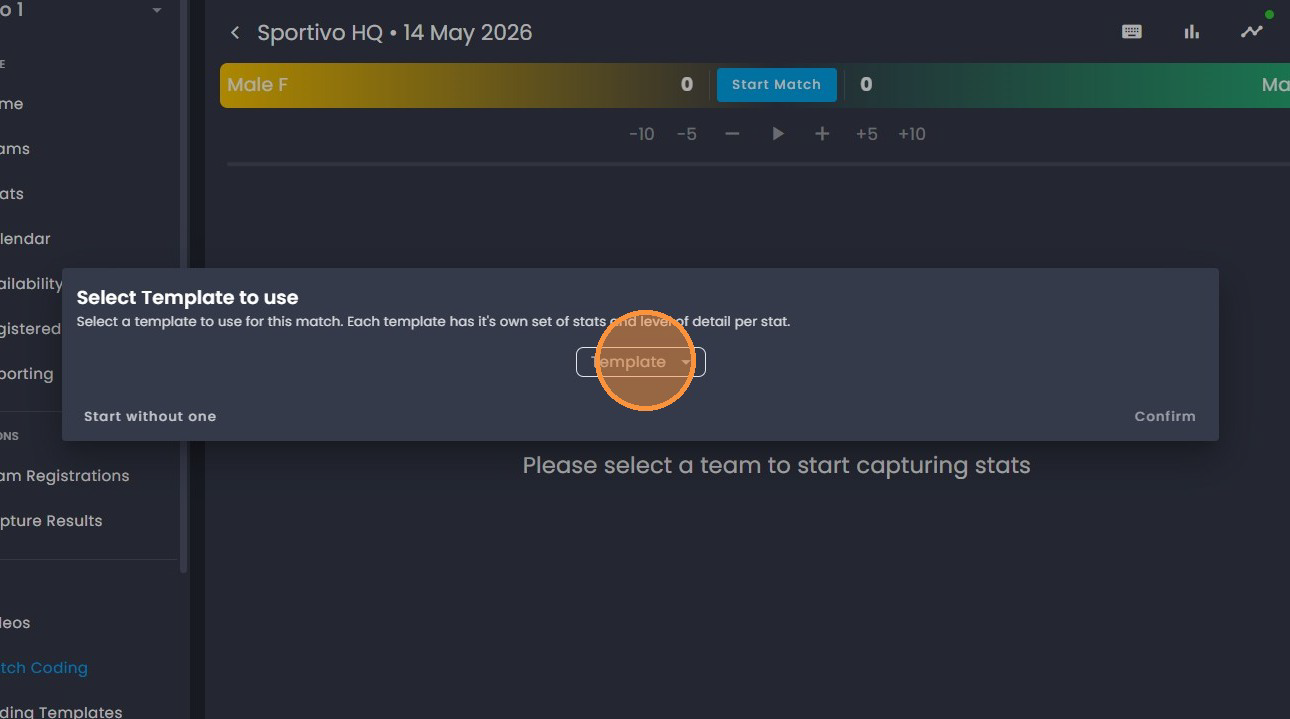
25. Click on "Template".
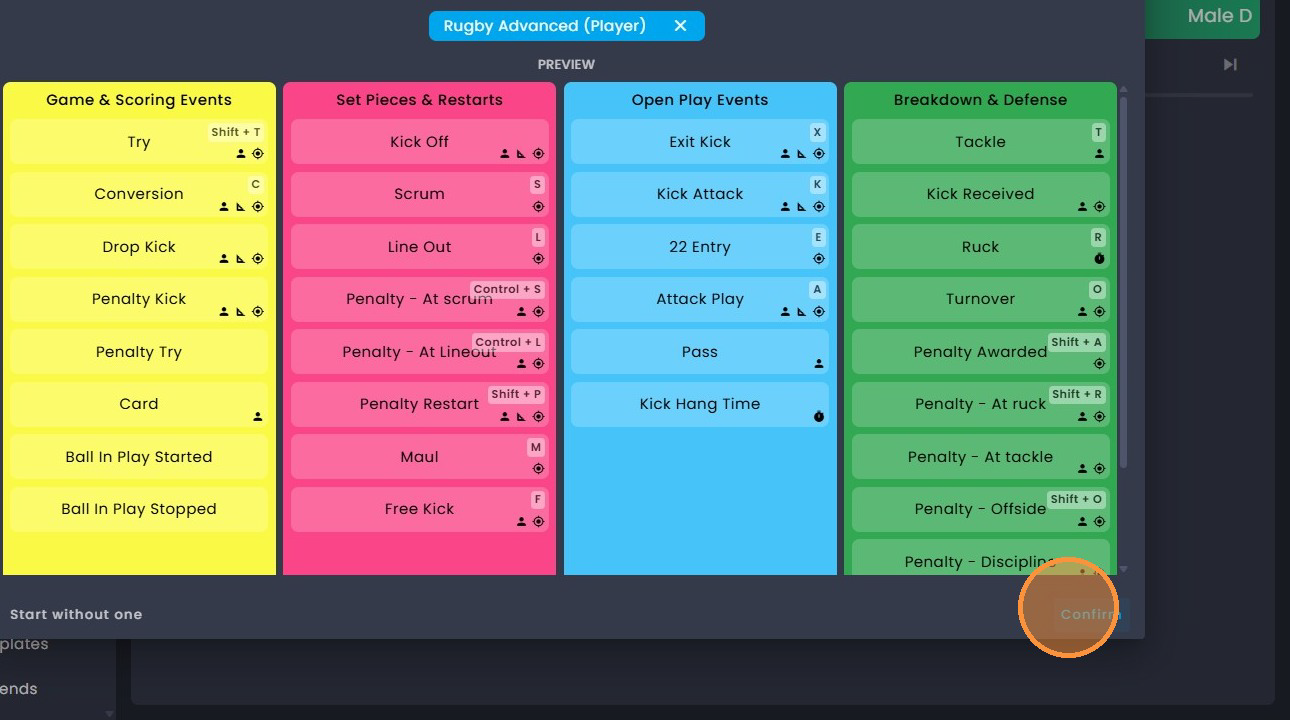
26. Select the preferred "Coding Template".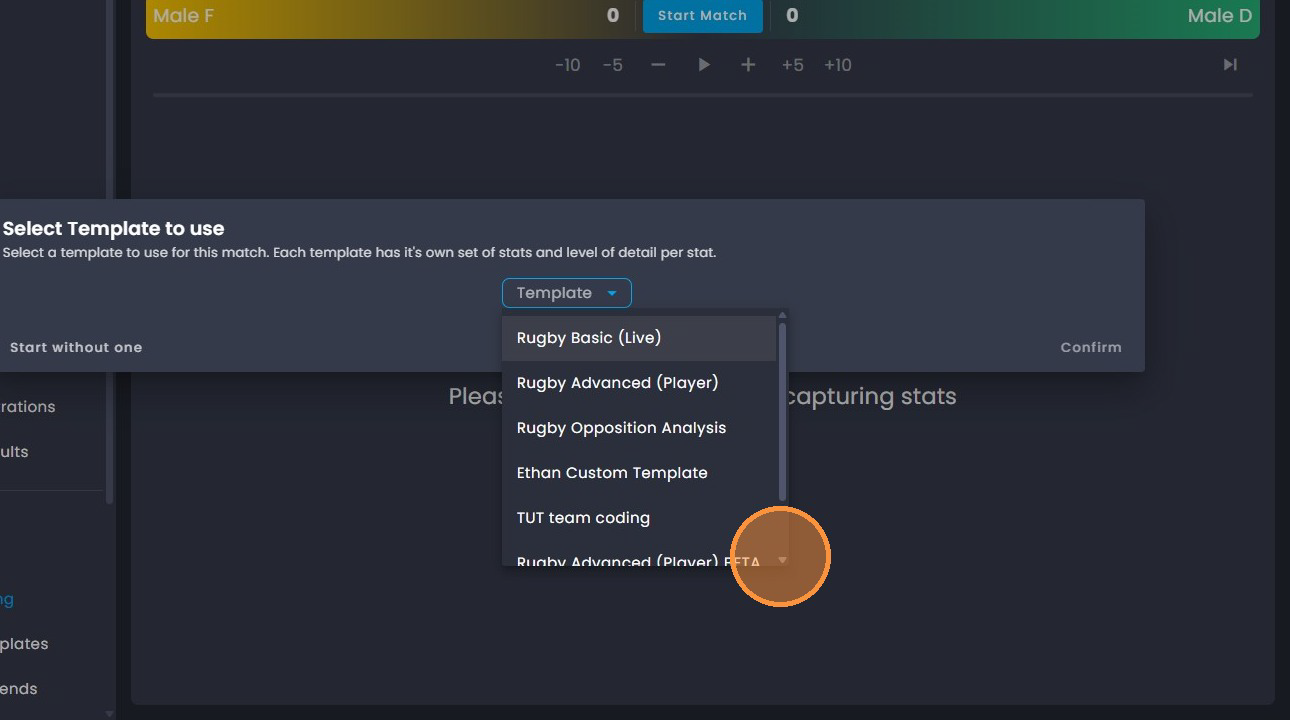
27. Click on "Confirm" once you have selected your coding template.
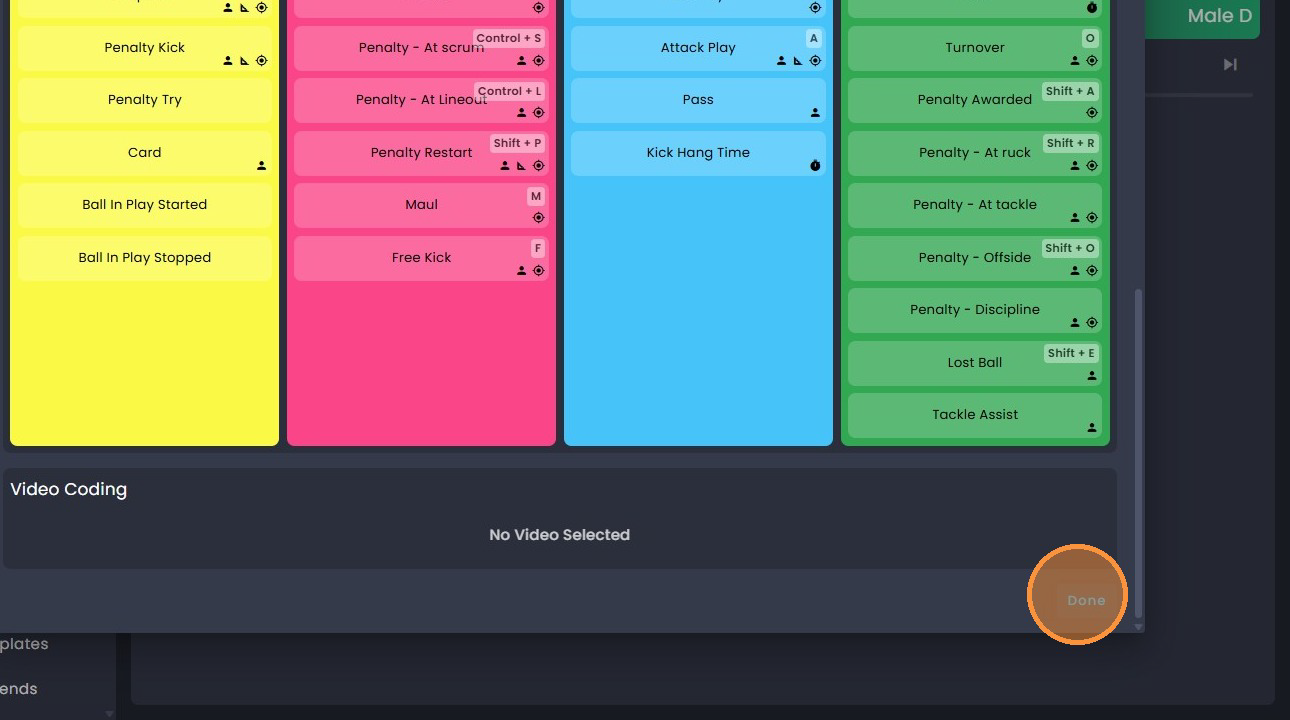
28. Click "Done" once all your details have been completed.
29. Click on the three dots on the top right of the screen.

30. Click on "Load Video". To add video to be coded.

31. Click on the appropriate video you will be coding.

32. Click here (Picture in Picture) to view the video for coding.

Was this article helpful?
That’s Great!
Thank you for your feedback
Sorry! We couldn't be helpful
Thank you for your feedback
Feedback sent
We appreciate your effort and will try to fix the article